Overview
Object Tracking in CaseGuard Studio lets you apply a redaction to a specific object and have it automatically tracked across frames. You can redact multiple objects, customize their shape, effect, and reason, and CaseGuard handles the tracking for you.
This feature is ideal when you need to redact specific objects or identifying features in a busy video, saving time and keeping full control over your redactions.
Follow these steps to redact objects using tracking!
- Select a shape and effect
- In the Video Tools Panel, select the shape and effect for your redaction box.
By default, the ellipse shape and adaptive blur effect are selected.
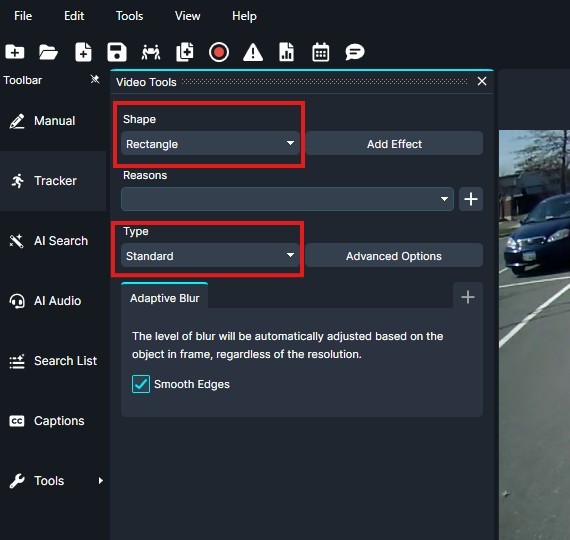
-
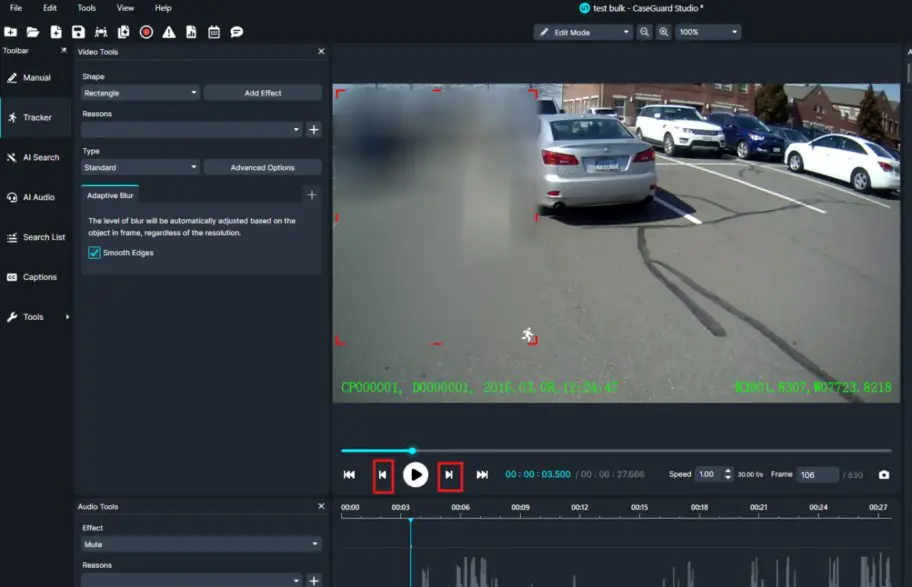
- Navigate Through the Video
You can review the tracking using the player controls.
>Use the left and right arrow keys to move frame by frame.
>Use the up and down arrow keys to move one second forward or backward.
Conclusion
The Object Tracking feature in CaseGuard Studio allows users to efficiently redact moving objects while maintaining full control over the redaction process. By automatically following objects across frames, Object Tracking significantly reduces manual editing time and helps ensure accurate, consistent redactions throughout a video.
For assistance with Object Tracking or other CaseGuard Studio features, our support team is always available to help:
📧 [email protected]