Overview
CaseGuard Studio’s Manual Audio feature gives you complete control when redacting sensitive information from any file with audio. You can conceal Personally Identifiable Information (PII), classified information, or other sensitive content with just a few clicks. It is ideal for investigators who need to perform manual edits on their files after performing many redactions!
For example, Investigators with the need to redact phone calls or Interviews find CaseGuard Studio’s manual audio redaction reliable and user-friendly. In seconds, you can redact any (PII) within an audio file. Additionally, within Caseguard, you can anonymize any voice by adding the “Change Voice” effect which lets you choose from 10 different pitches. While the redaction tool is phenomenal, the “edit” option is available for those looking to hide the identity of the speaker without performing any redaction.
In addition to applying redactions, you can:
- Add a redaction reason on each audio point, if the court requests it.
- Anonymize audio points to hide the identity of the speaker to comply with privacy laws.
Follow the steps to apply Audio Redactions Manually!
- Add an audio or video file into CaseGuard Studio.
- Once loaded, click Audio Tools on the bottom left side of your workspace.
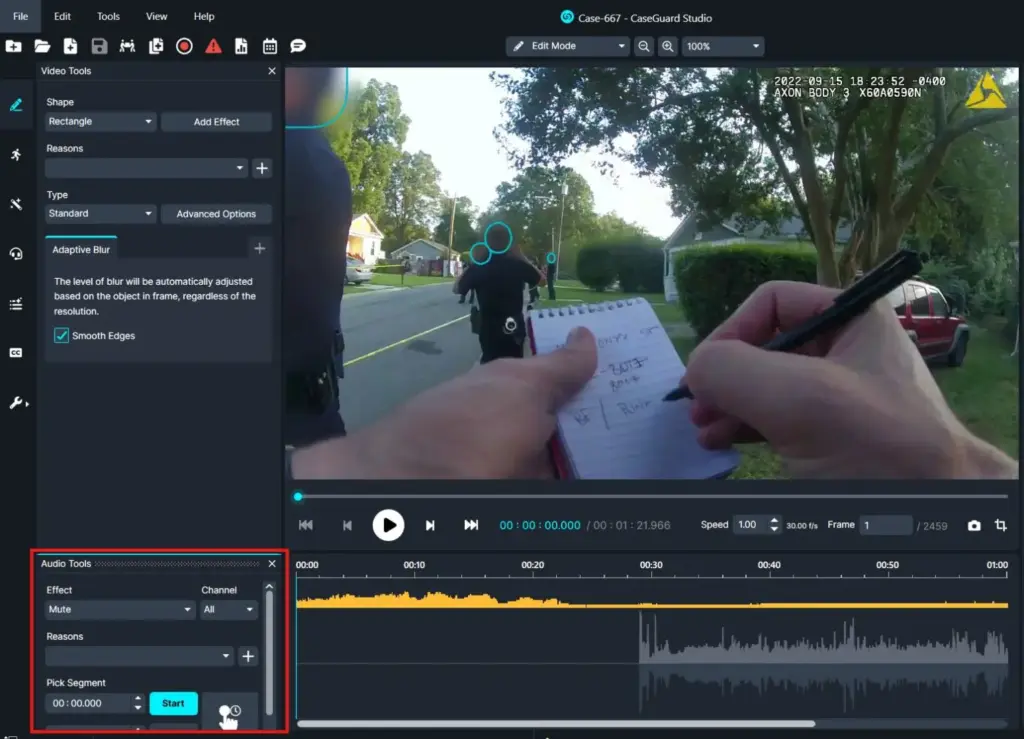
- There are four different methods to apply audio redactions manually, as shown above:
- Enter the exact Start and End time in the respective field for the audio segment you want to apply a redaction to and then select either Mute (Green) or Bleep (Orange).
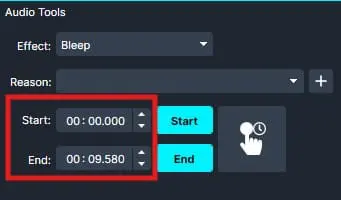
While all four methods are applied differently, they are all manual options!
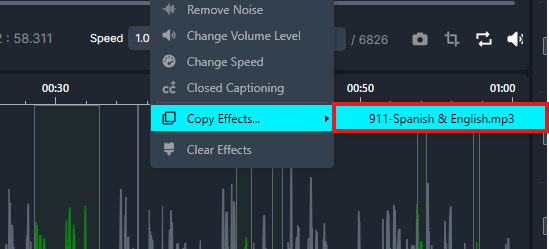
- Additionally, you can apply the same effect on multiple files within one project, using the Copy Effect function.
- You can use the copy effect to redact multiple audio files to ensure the same effect, shape, color, and/or redaction reason is applied to all redactions in the audio files.
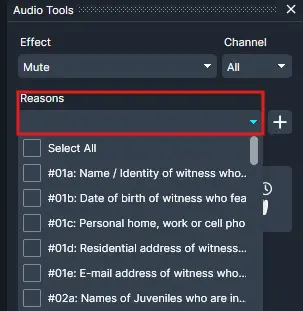
- From the Reason dropdown menu, a redaction reason can be selected for each audio redaction point or a new reason can be added by clicking
 next to the dropdown.
- Once you have reviewed the redactions, click
 Export from the Shortcuts Bar to export your redactions.
Conclusion
CaseGuard Studio’s Manual Audio feature provides a flexible and precise way to protect sensitive information within audio and video files. Whether you need to mute, bleep, or anonymize speech, the platform offers multiple methods for applying audio redactions to match your workflow. With support for custom redaction reasons, voice anonymization, and the ability to copy effects across multiple files, CaseGuard Studio helps investigators, legal professionals, and compliance teams efficiently safeguard private information while maintaining accuracy and consistency throughout the redaction process.
Was this article helpful to you?
No
Yes
2