How to: Convert Audio to Video in CaseGuard Studio

Overview

CaseGuard Studio allows you to easily convert an audio file into a video file format. This feature is especially useful when you need to share or upload audio content to platforms that only accept video formats, such as MP4. By using the built-in Convert Audio to Video tool, you can quickly create a video version of any audio file without needing third-party software.

  • Launch CaseGuard Studio.

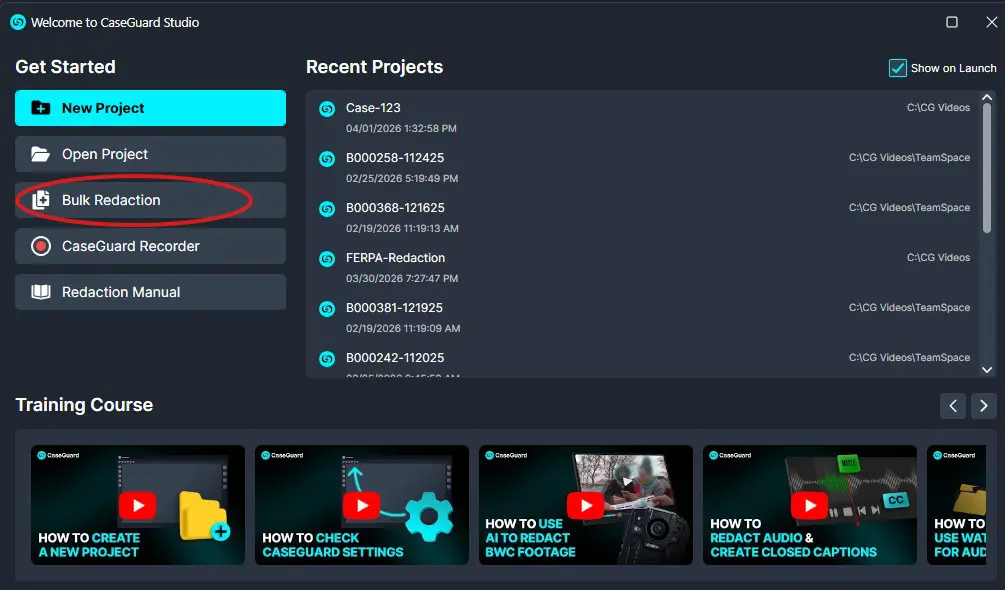
  • Click on Bulk Redaction

Screenshot of CaseGuard Studio: left navigation with 'New Project' and 'Bulk Redaction' highlighted, and a 'Recent Projects' list on the right, plus training thumbnails at the bottom.

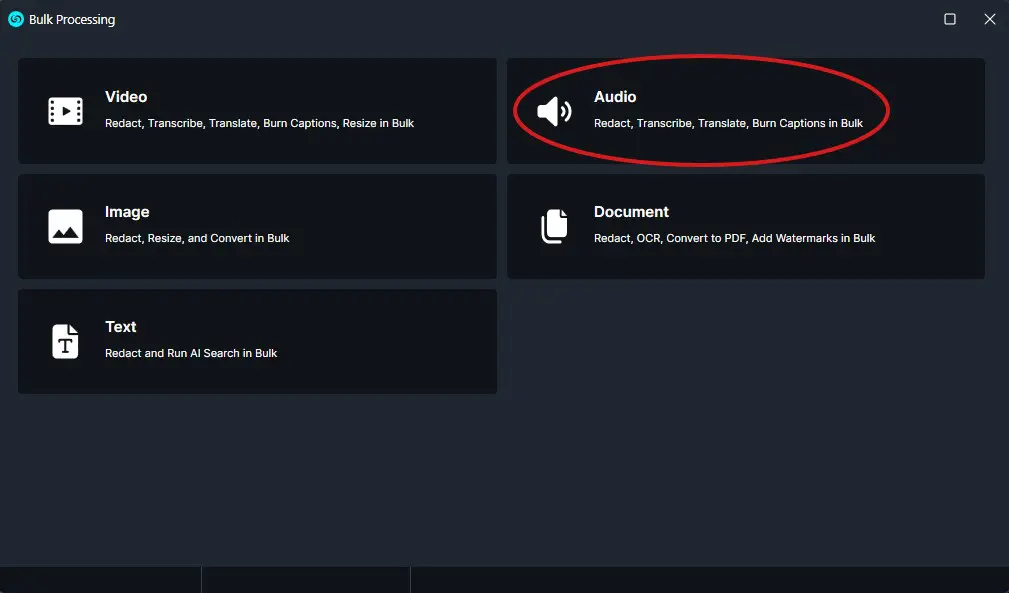
  • Click on Audio

Bulk Processing app main menu with six option tiles: Video, Audio (circled), Image, Document, Text; Audio tile emphasized as selected/featured.

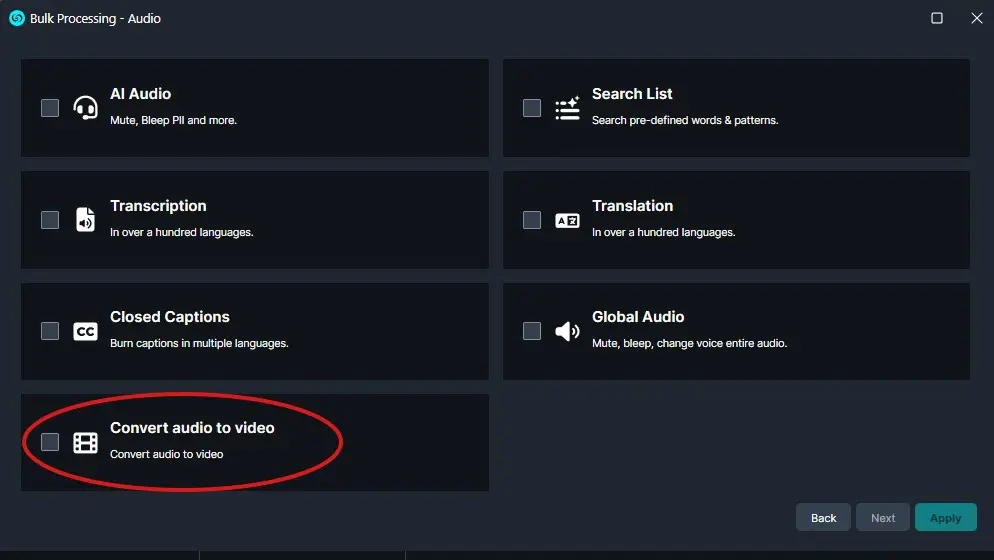
  • Click on Convert audio to video

Bulk Processing - Audio window displaying processing options (AI Audio, Search List, Transcription, Translation, Closed Captions, Global Audio) with a circled 'Convert audio to video' button.

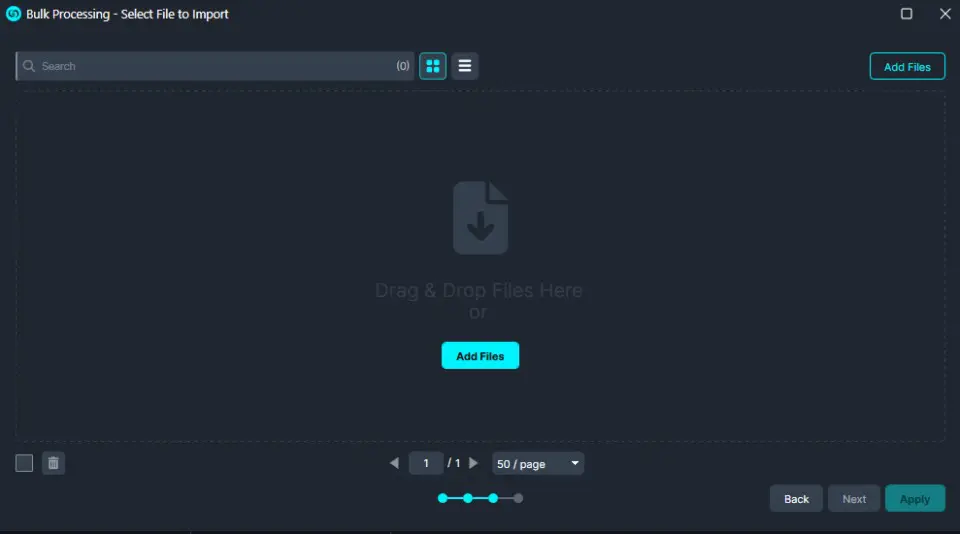
Dark Bulk Processing window with a central drag‑and‑drop area labeled 'Drag & Drop Files Here or Add Files' and a bright Add Files button.

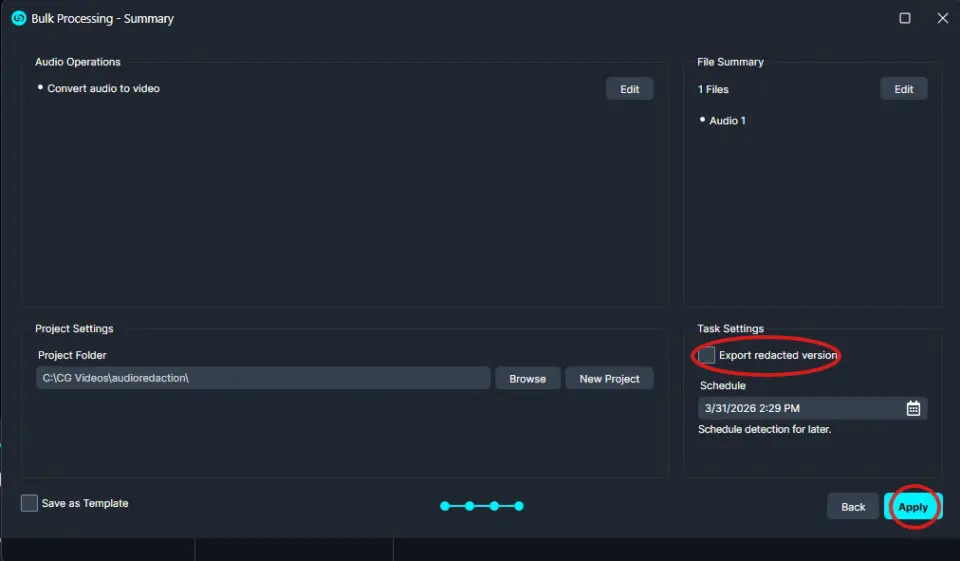
Screenshot of Bulk Processing – Summary UI: left shows Audio Operations with 'Convert audio to video'; right shows File Summary with '1 Files' and 'Audio 1'; bottom-left Project Settings with folder path and Browse/New Project; bottom-right Task Settings with 'Export redacted version' checkbox; blue circled Apply button in the lower-right.

Click Next and uncheck “Export redacted version”

  • Finally click Apply.

  • Once processing is complete, your audio will be converted into an MP4 video file instead of its original audio format.

Conclusion

The Convert Audio to Video feature in CaseGuard Studio is a simple yet powerful way to generate video files from existing audio content. Whether you’re preparing files for upload, presentation, or archival purposes, this tool makes the process quick and seamless.