How to Change the Default Redaction Colors in CaseGuard Studio
In this article, we’ll go over how to change the default redaction colors in CaseGuard Studio. By default, document redactions are displayed in black. However, depending on your agency’s requirements, workflow, or specific use case, you may want to use a different color to help distinguish redactions or meet your organization’s formatting standards.
Follow the steps below to customize the default redaction color settings in CaseGuard Studio.
Steps to Change Default Redaction Colors
-
Open CaseGuard Studio.
-
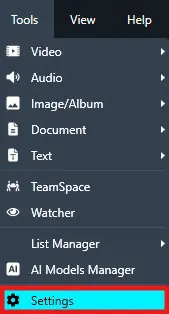
Next, go to Tools in the top-left corner.
-
From the dropdown menu, select Settings.
-
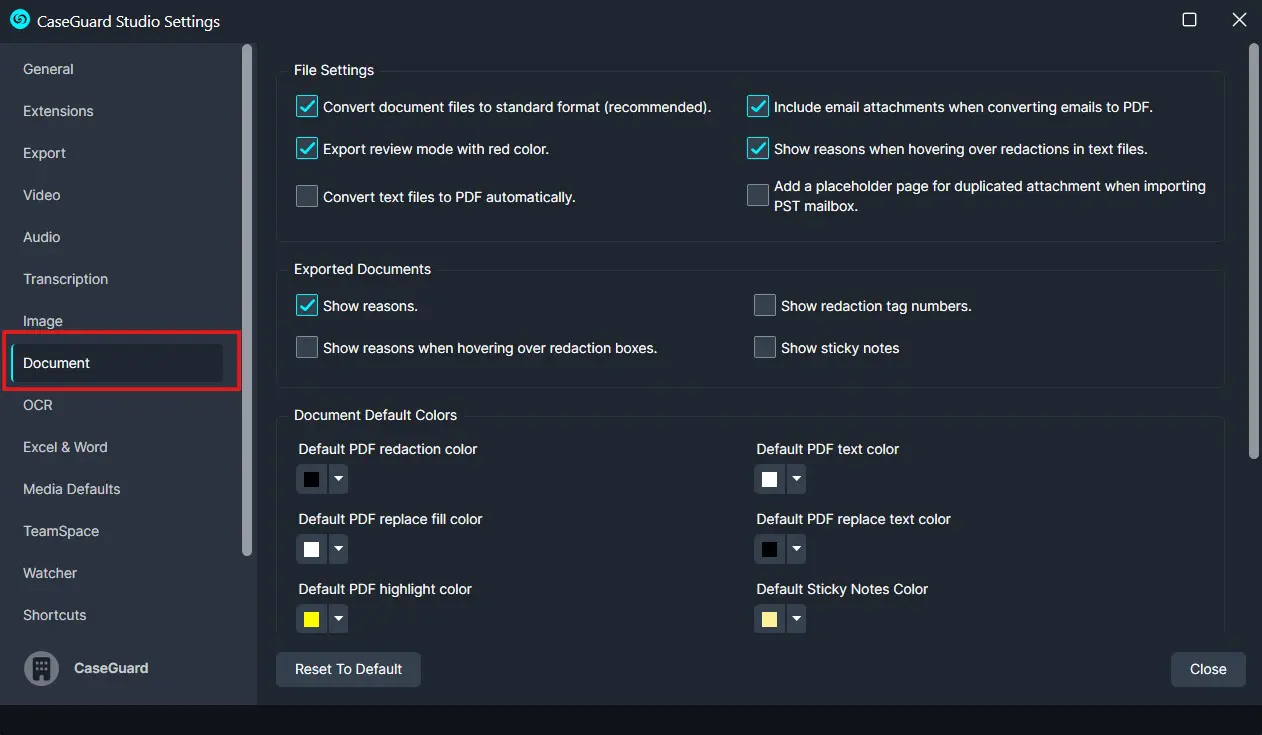
In the Settings menu, click Document on the left-hand side.
-
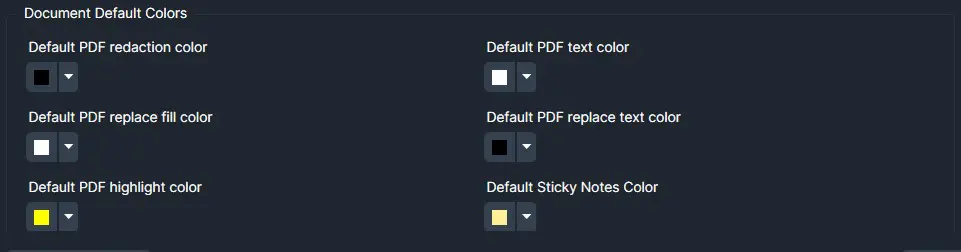
Under the Document section, you will see options for:
-
Redaction Color
-
Replace Fill Color
-
Text Color
-
Replace Text Color
To change the default PDF redaction color:
-
Select Default PDF Redaction Color.
-
Use the dropdown menu below to choose your desired color.
-
Once finished, click Close in the bottom-right corner of the window.
Your new settings will take effect immediately.
Conclusion
Customizing your redaction colors in CaseGuard Studio allows you to meet your organization’s specific formatting or compliance requirements. Whether you’re working with sensitive documents that need color-coded redactions or simply prefer a different visual style, CaseGuard makes it quick and easy to update your preferences.
Need Help?
If you need additional assistance with changing redaction colors or other CaseGuard features, our support team is happy to help.
📧 Contact us at: [email protected]
Was this article helpful to you?
No
Yes