Overview
CaseGuard Studio’s AI Audio feature allows you to automatically detect and redact sensitive information from audio and video files. Whether you need to mute personally identifiable information (PII) such as names, addresses, or phone numbers, or apply a bleep effect for confidentiality, the AI Audio tool simplifies the process by automatically transcribing and identifying data that needs redaction.
Step-by-Step Instructions
-
In CaseGuard Studio, import the file you want to redact audio from.
-
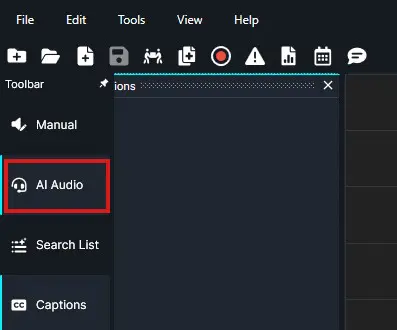
On the left vertical toolbar, click AI Audio.
-
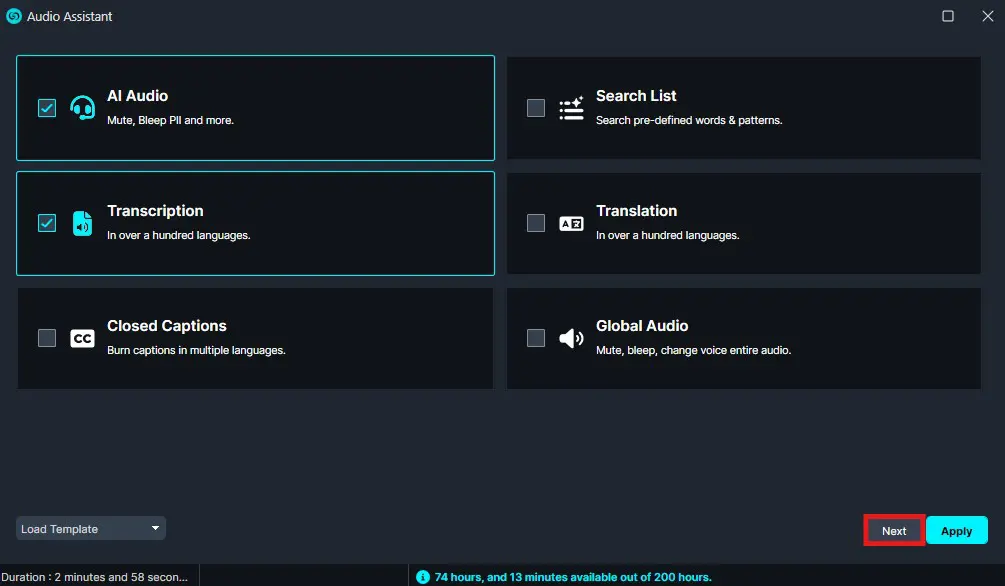
Select AI Audio again. The Transcription option will be automatically selected. Click Next to continue.
-
Select your preferred Model from the dropdown.
-
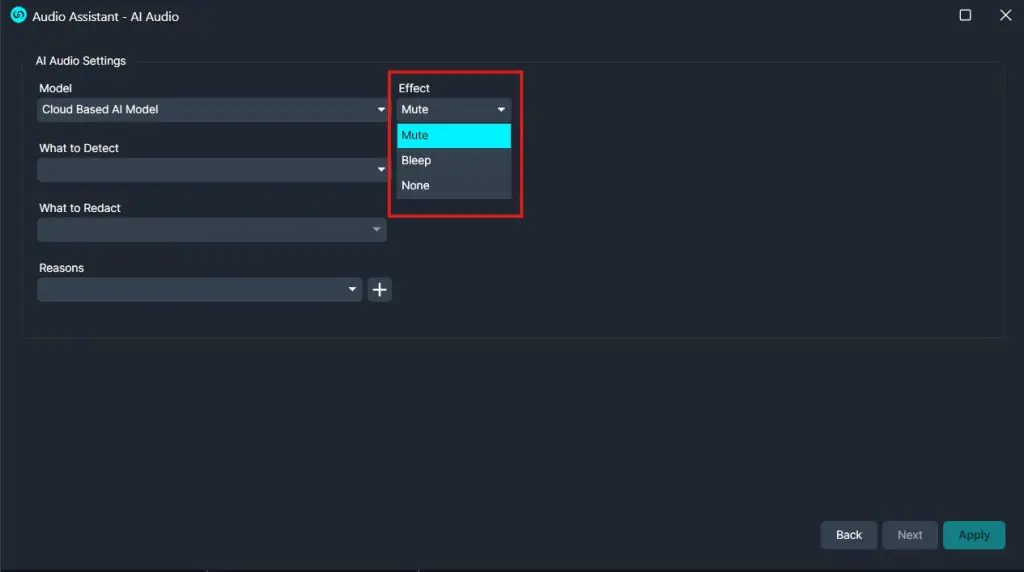
On the right side of the model dropdown, choose your preferred effect type:
-
Mute – silences the redacted section.
-
Bleep – replaces redacted audio with a beep tone.
-
None – keeps the audio unchanged while still marking the redactions.
-
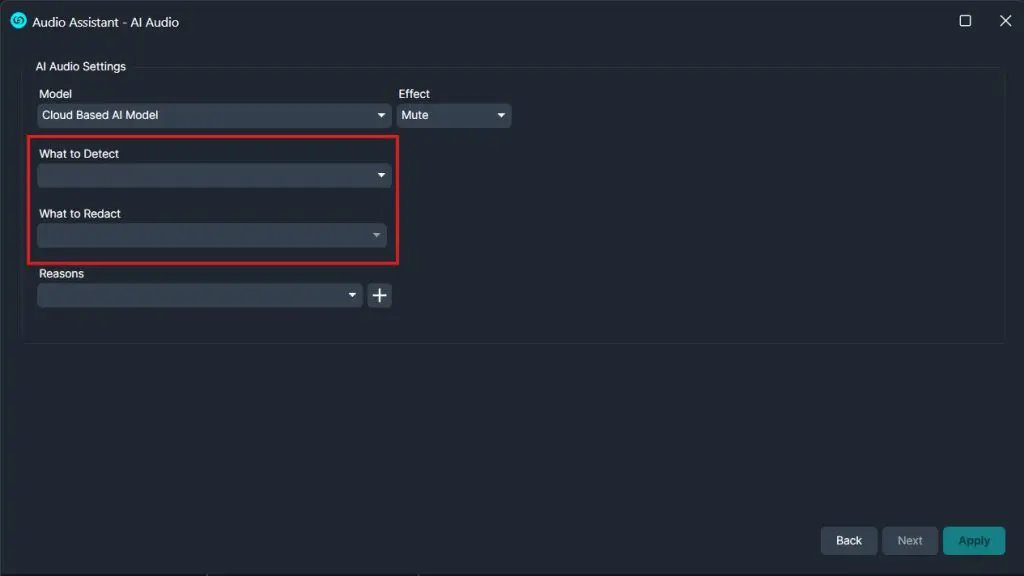
From the What to Detect & What to Redact dropdown lists, select all the PII elements you’d like CaseGuard Studio to detect and redact.
-
Add redaction reasons if required for documentation or compliance.

-
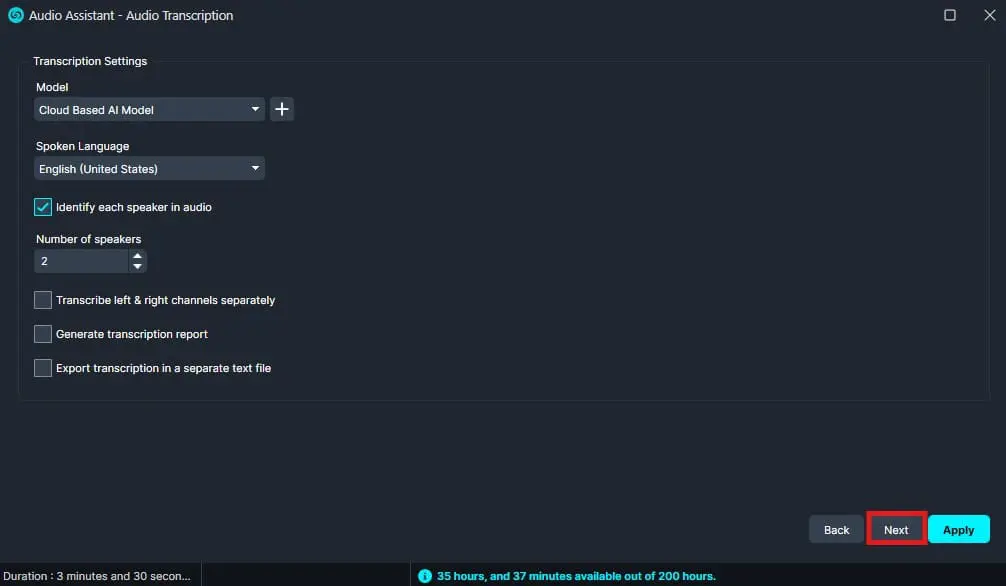
Click Next and choose your Transcription settings.
-
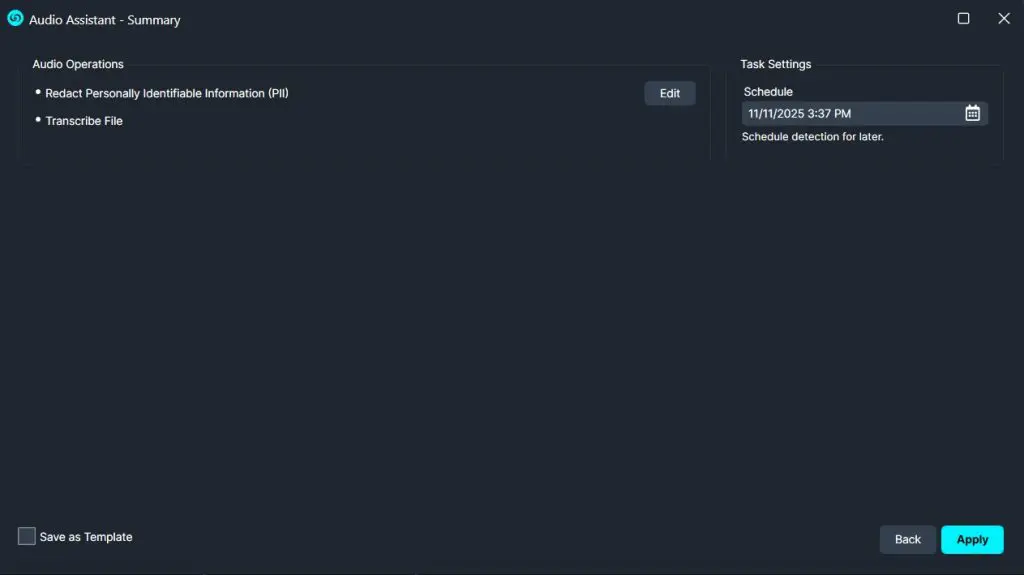
Click Next again, then select Apply to begin processing.
-
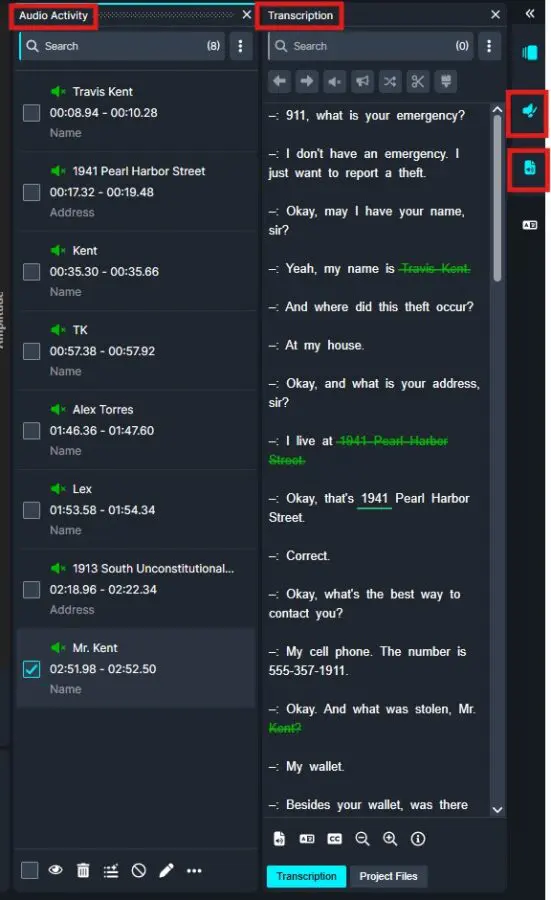
Once AI Audio processing is complete, navigate to the right side panel to:
Conclusion
The AI Audio feature in CaseGuard Studio provides a fast and accurate way to redact sensitive information from audio files. By combining automatic transcription with customizable redaction effects and exemption options, you can ensure that your files are both compliant and professionally presented. This tool saves time, enhances consistency, and simplifies the redaction process for all types of audio recordings.
Was this article helpful to you?
No
Yes