Overview
The Watcher is an advanced, automated AI tool that automatically observes, detects, redacts, and exports your documents, without manual input! For teams that need to perform high-volume document redaction, the Watcher provides a fast, scalable way to automate entire batches of files using AI.
This tool works especially well for users who frequently process large quantities of documents using CaseGuard’s automated document redaction software. The Watcher requires certain rules or criteria to look for when redacting. After the operation is set, the Watcher automatically scans every incoming document, detects the specified patterns, and applies document redaction instantly.
You can create one or multiple Watchers, depending on the number of workflows you want to automate. Each Watcher uses one or more of the seven available AI operations, allowing you to combine features such as anonymization, PII detection, and text analysis.
For example, if you have 100 resumes containing PII such as names, phone numbers, and emails, you can set the Watcher to anonymize the files and run AI text analysis at the same time. All documents will be fully redacted and exported within minutes. The speed of the Watcher increases as the number of documents added increases. For users planning to process thousands of documents, we recommend setting the Watcher before lunch and your batch will be fully redacted and ready to go when you return.
Follow the Steps to set up the Watcher!
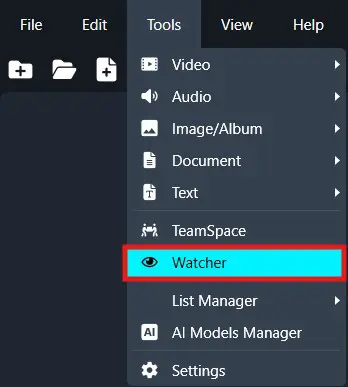
- On the left-side menu, click the Tools tab. Then, open the drop-down menu and select Watcher. and then click the Add Watcher button .
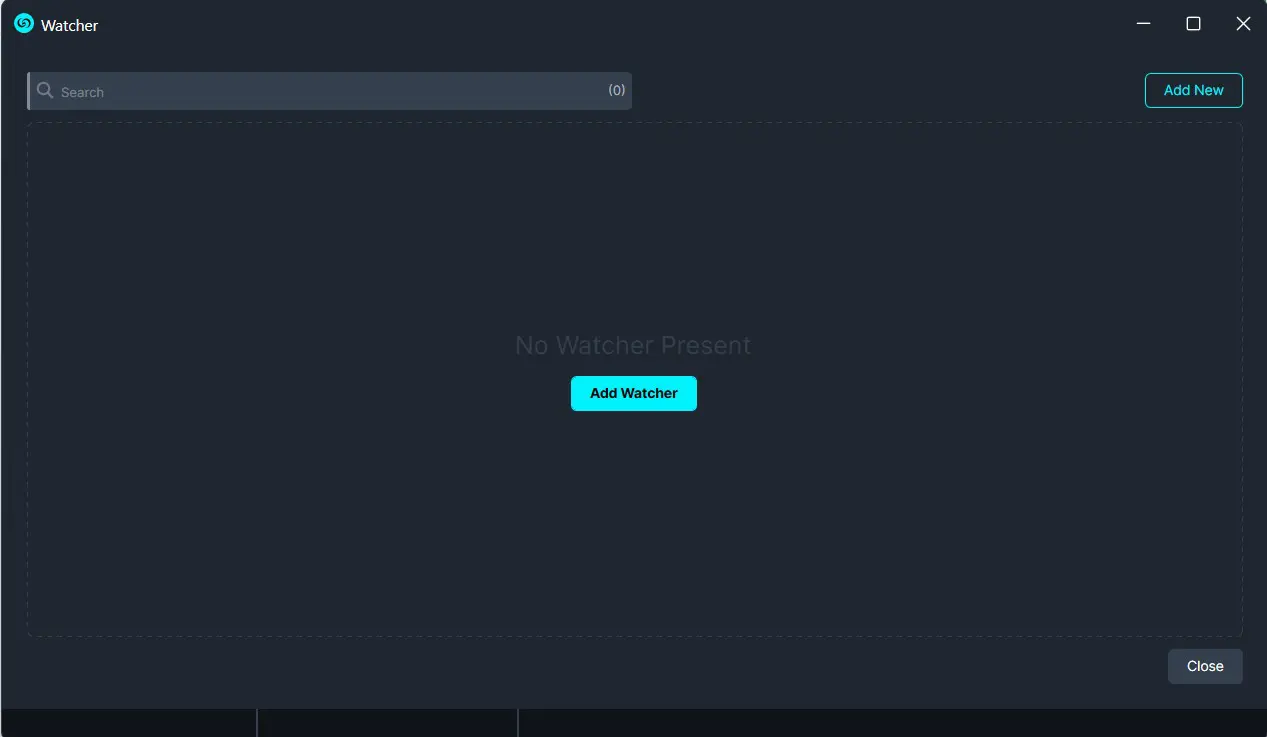
- The CaseGuard Watcher window will pop up.
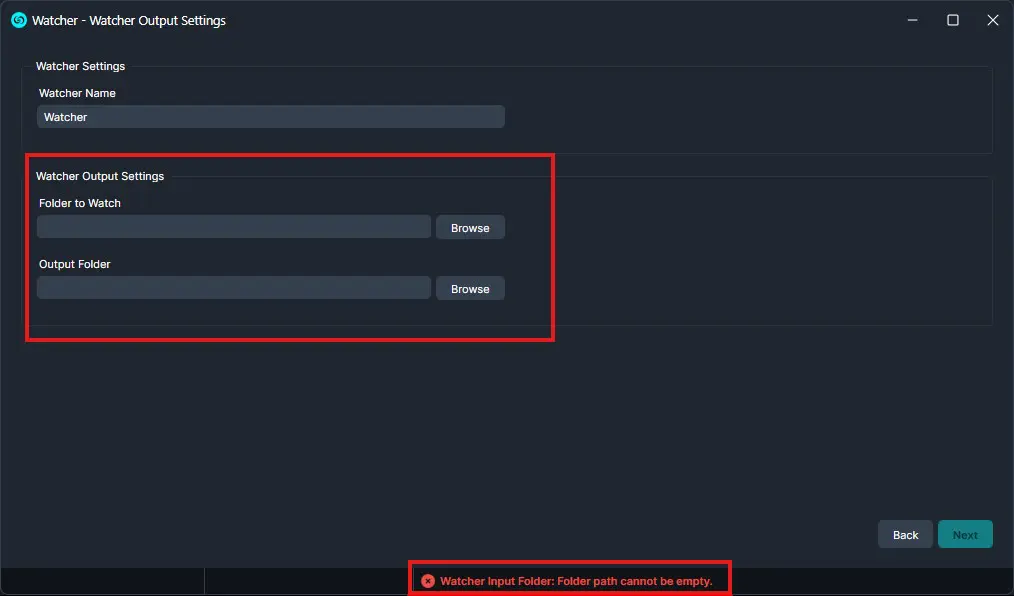
- Add a Watcher Name.
- Click “Browse” to add a folder to watch. This is the folder where all documents that need to be redacted will be input.
- Click “Browse” to add an Output folder. This folder will contain all exported files after the Watcher processes and redacts the documents from the Watch folder.
- Click “Next.“
- A Watcher window will appear. Select Document for the operation you would like your Watcher to perform.
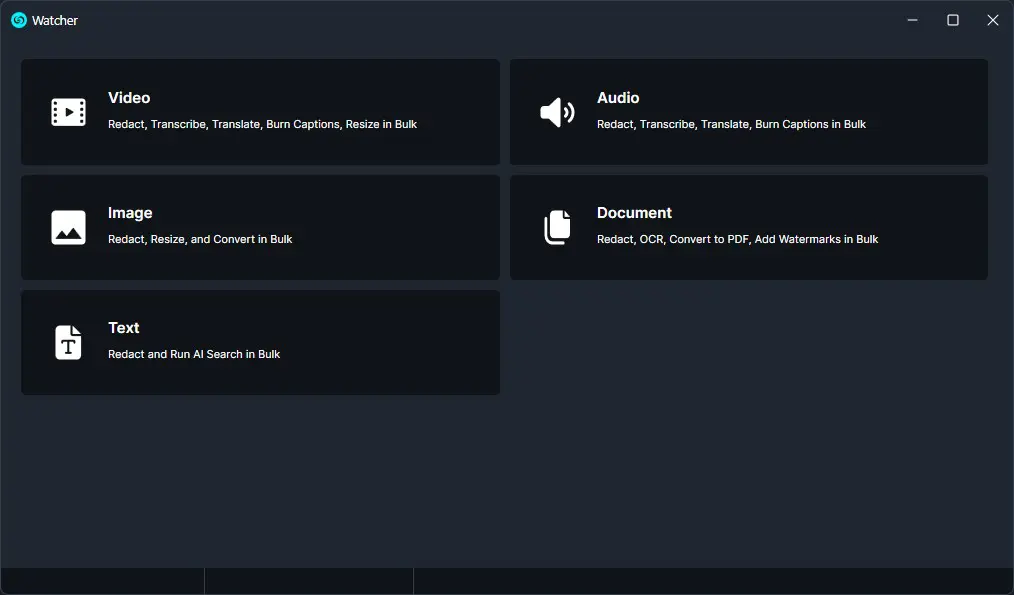
- Select one or more operations to apply to your Watcher and click “Next.”
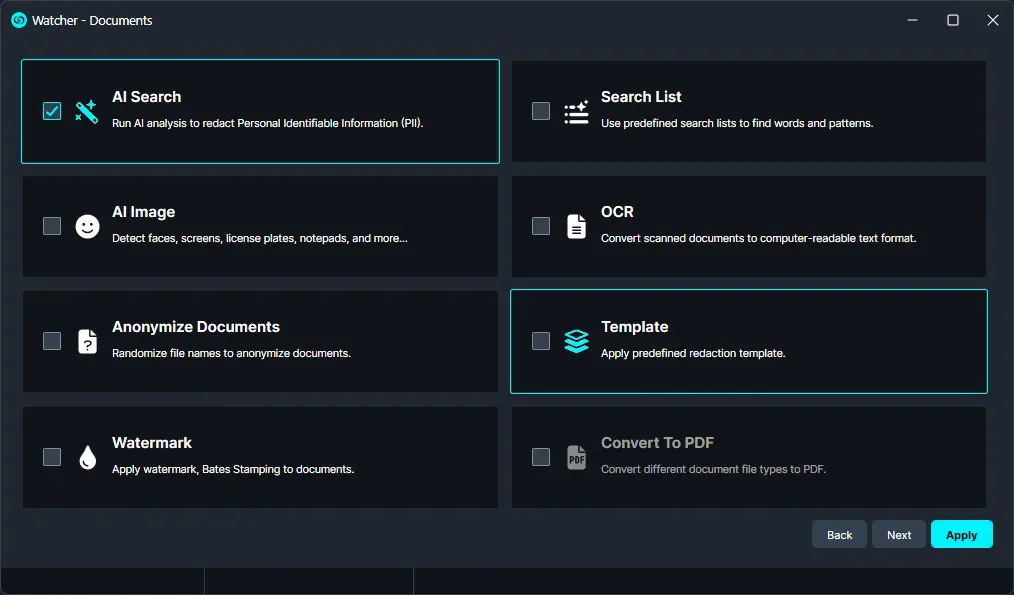
- A window will appear based on what operation was chosen. Select the settings for that operation then click “Next.”
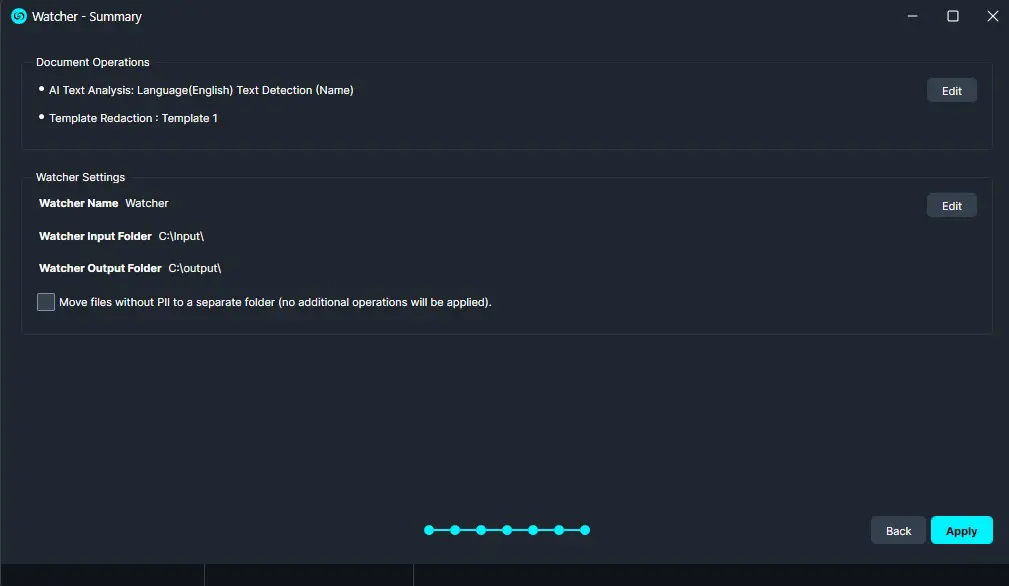
- A Summary window will appear where you can review and edit your selections.
- Once satisfied with your Watcher click “Apply.”
Conclusion
The Watcher allows you to automate document redaction workflows in CaseGuard by monitoring a selected folder, applying AI operations, and exporting processed files automatically. Once configured, it can handle large volumes of documents with minimal manual effort, helping teams save time and streamline high-volume redaction tasks.
If you need help with this process, please contact the CaseGuard Support team at [email protected]
Was this article helpful to you?
No
Yes
1