Follow these steps to install CaseGuard Studio!
1. Receive Your Login Credentials
Once your license is issued, you will receive an email from [email protected] containing your login credentials.
If you do not receive this email, please contact [email protected].
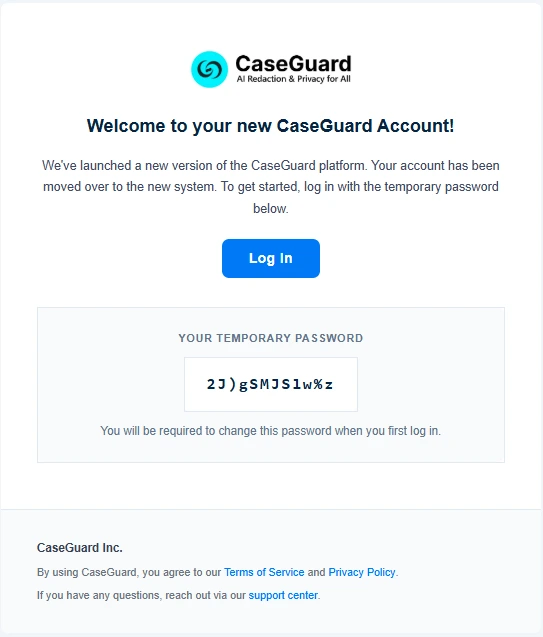
2. Set Your Password and Log In
- Copy the temporary password provided in the email.
- Then, click the “Log In” link in the email.
- This will redirect you to the online website.
- Next, paste the temporary password copied from the email.
- You will be prompted to create a new password.
Password Tips:
- Use a mix of uppercase letters, lowercase letters, numbers, and special characters.
- Avoid easily guessable personal information.
- CaseGuard will never ask for your password via email.
After updating your password, you will be logged into the CaseGuard cloud portal:
- my.caseguard.com (standard users)
- gov.caseguard.com (government users)
3. Download CaseGuard Studio
- From the homepage, navigate to the bottom-left corner.
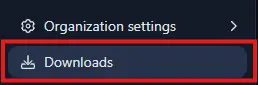
- Click Downloads.
- You will be redirected to the Downloads page.
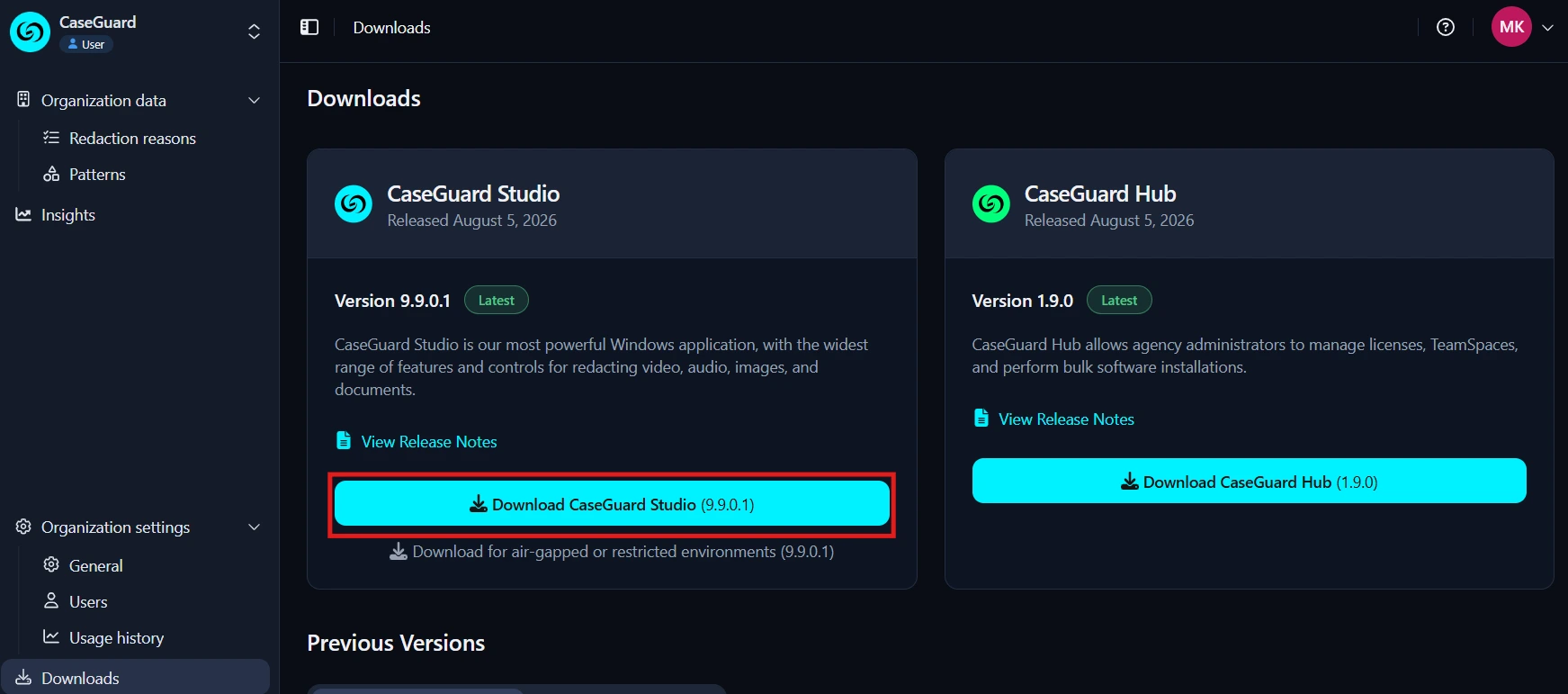
- Within the Downloads page, you will see two options for CaseGuard Studio installers:
-
- Online Installer (Recommended) – best for most users
- Offline Installer – for restricted or air-gapped environments
- Click the option that best suits your organization.
4. Run the Installer
- Once downloaded, open the installer file (e.g.,
caseguardstudio-x.x.x.exe)
- You can access it from your browser’s downloads or your computer’s Downloads folder.
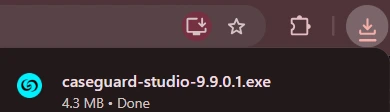
- Once the download is complete, click “Downloads” on the top right corner of your browser to view the downloaded installer.
- Click “caseguardstudio-x.x.x.exe” to start the CaseGuard installation process.
- If you can’t find the “Downloads” section in your browser, you can also access the caseguardstudio-x.x.x.exe file from the Downloads section in Windows File Explorer.
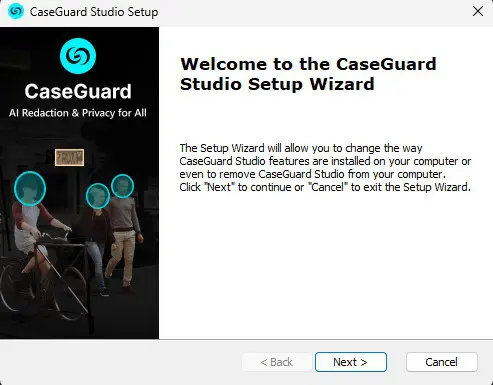
- Once the CaseGuard installer window opens up, click “Next”.
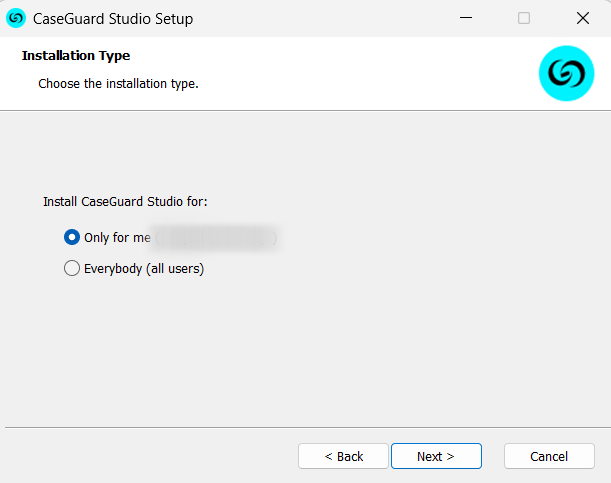
- On the next CaseGuard installer window, decide if you would like to install the software for everybody that uses the computer or just yourself.
- If multiple user accounts will be using CaseGuard on the same computer, choose “Everybody (all users).”
- If CaseGuard is intended for use by only one user account, select “Only for me“.
- Once the user preference is selected, Click “Next” to continue.
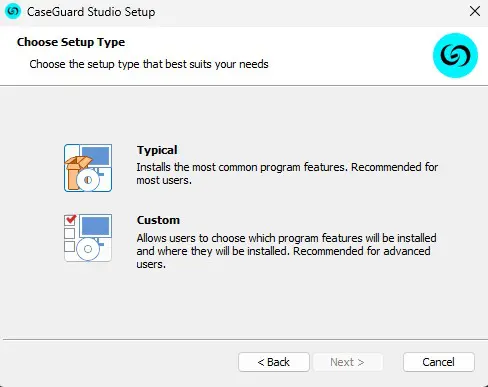
- Click “Typical“.
- or click “Custom” if you would like to set up a custom setting path or install 10 additional OCR languages.
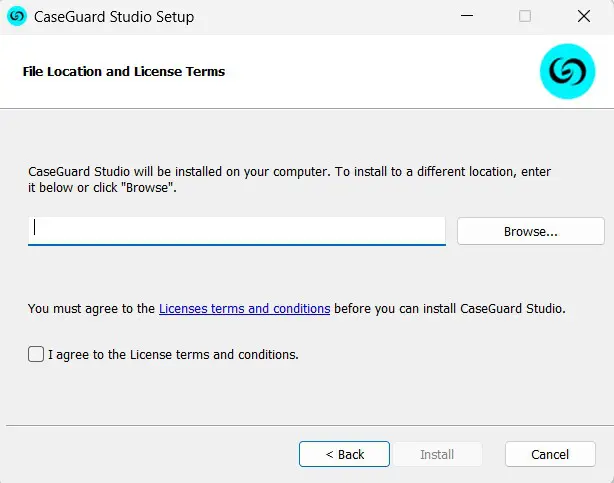
- In the next window decide where you would like your CaseGuard Studio installed.
- We recommend keeping it installed on a local drive. (Keep file path as is)
- Click the check box to agree with the CaseGuard License terms and conditions and then click “Install.”
- Review the terms and conditions by clicking the “License terms and conditions” link.
- The CaseGuard installation will begin, it may take a few minutes depending on your internet connection.
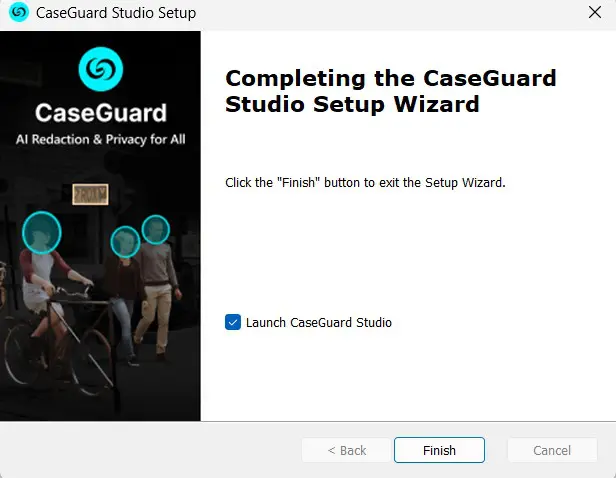
- To launch CaseGuard Studio immediately, check the box next to “Launch CaseGuard Studio,” then click “Finish“.
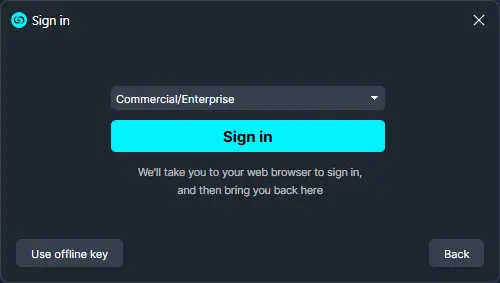
- When you open CaseGuard Studio for the first time, a Sign in window will appear. Choose the correct Agency type from the dropdown menu.
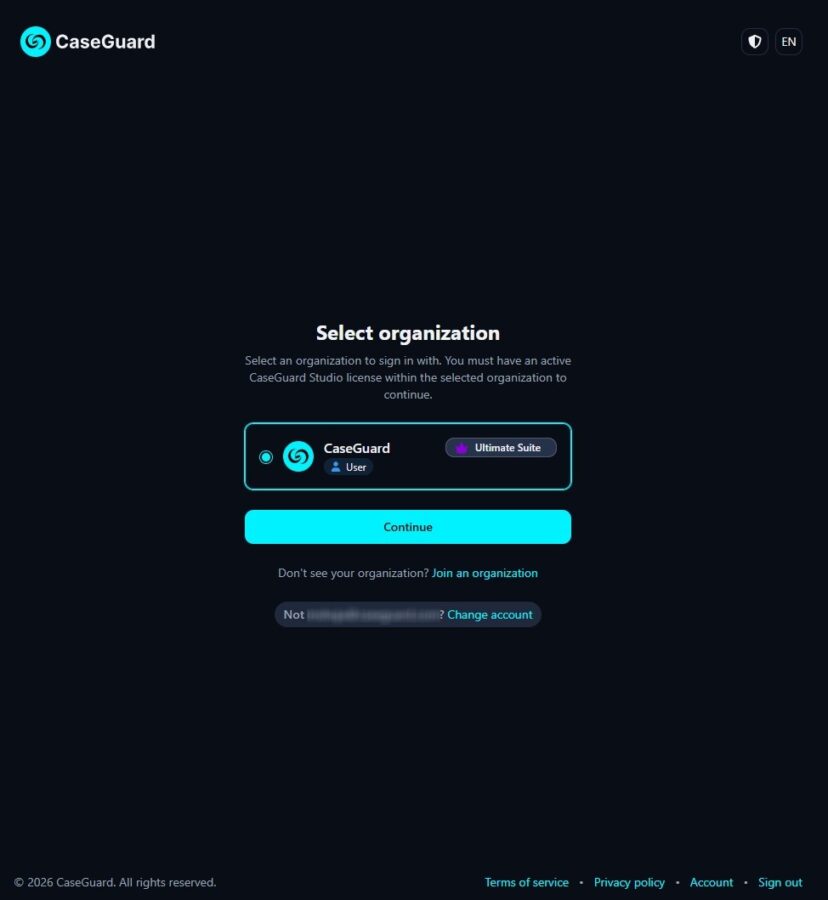
- This will redirect you to the website. Click Continue.
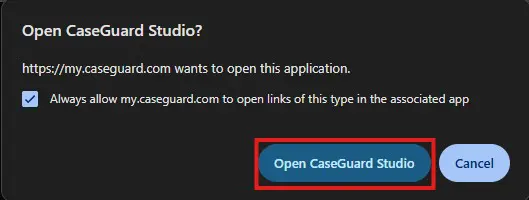
- Once you click Continue, you will see a pop-up message asking to open CaseGuard Studio. Click Open CaseGuard Studio.
- Your CaseGuard Studio will now be signed in. You’re ready to start redacting!
Using Offline-Keys
If a user intends to utilize CaseGuard Studio offline or in an air-gapped network, we have offline keys available for you to access the software.
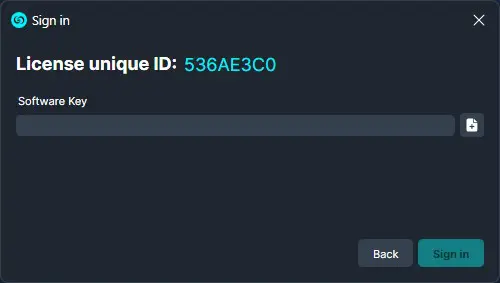
- To install CaseGuard, follow the steps outlined above. If the workstation is in an air-gapped network, you may need to use a flash drive to transfer CaseGuard’s files from a computer with internet access to the air-gapped workstation.
- Install the software by adding CaseGuard’s files to your computer. After the installation of CaseGuard is complete, open the software and expand the offline key section on the login prompt.
- Contact your CaseGuard representative or email [email protected], providing them with the License Unique ID if you need assistance with generating offline keys
Conclusion
Installing CaseGuard Studio is a straightforward process that gets you up and running quickly, whether you’re setting it up on a standard internet-connected machine or in a restricted air-gapped environment. By following the steps above – from receiving your login credentials and setting your password, to downloading and configuring the installer – you’ll be ready to start redacting in just a few minutes. If you run into any issues along the way, the CaseGuard support team is always available at [email protected] to help ensure a smooth installation experience.