To access CaseGuard Studio’s General Settings, select “Tools” from the top of CaseGuard then click “Settings“. The CaseGuard Studio Settings popup contains 16 tabs, one of which is the “General” tab.
When navigating the General Settings within CaseGuard Studio, there are several settings that you can configure to meet the particular needs of you or your agency.
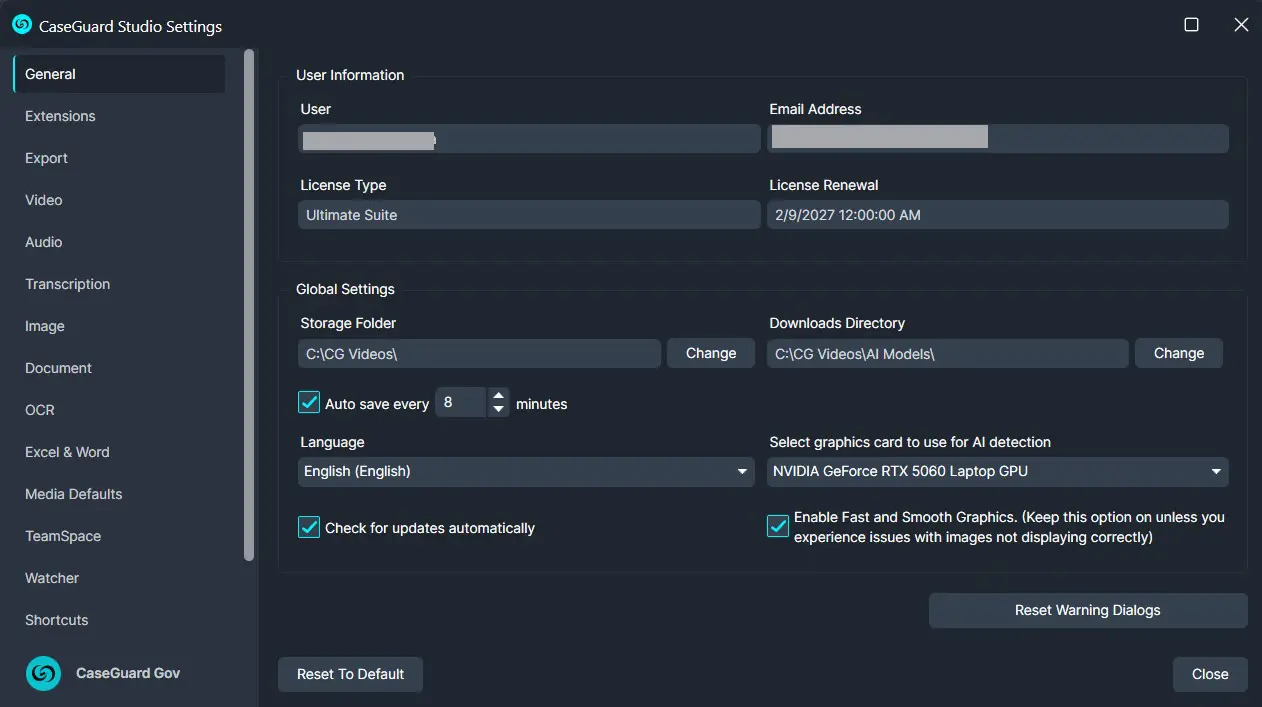
This tab provides information about:
- License Information: Displays the user the license is assigned to, the current license type, and the license renewal date.
In this tab you can also change your:
- Storage Folder
- Language
- Autosave preferences
- Enable “Check for updates automatically”
Storage Folder
This is where all of your project folders and their respective files will reside. Select the Change button to decide where this directory resides on your machine. CaseGuard recommends leaving the folder at its default location.
Language
CaseGuard supports over a 100 languages and localizations. Select your preferred language in the dropdown menu and then click “Close” to finalize the changes.
Auto save every __ minutes
This option gives users the ability to dictate their auto-save preferences when using the software.
Check for updates automatically
The automatic update check option in CaseGuard Studio enables the software to automatically search for updates each time it is opened. This feature ensures that you always have the latest version of CaseGuard with the most recent improvements and features, enhancing your user experience and maintaining software efficiency and security.
Was this article helpful to you?
No
Yes
5