Overview
The Audio Translation feature utilizes advanced machine learning algorithms to accurately translate spoken words in audio/video recordings. The intuitive interface allows users to select the source and target languages, making the translation process seamless and user-friendly. Within CaseGuard, you can automatically translate your transcribed audio into 74 languages.
This feature is especially useful for users working with multilingual individuals, whether in educational, legal, or investigative settings. For example, interviews conducted in Spanish can be translated into English in just minutes, without any manual translation work.
How to translate audio
There are two ways of translating your audio in CaseGuard Studio.
First Method: Translate During AI Audio Processing
- Add your audio or video file into CaseGuard Studio.
- Run AI Audio on your file:
- On the transcriptions settings window:
- Select the language the audio is spoken in (if different from English)
- Select the number of speakers.
- On the translation settings window:
- choose the language you would like to translate to in the “translate spoken language to” dropdown.
- Then click apply to run processing.
- Once complete, click on the translation tab in project files to see the translation.
Second method: Translate from the Translation Panel
You can also translate your file directly from the Translation Panel, even if you have not already transcribed it using AI Audio.
-
Open the Translation Panel.
-
Click Auto Translation.
If the file has not yet been transcribed, the system will first prompt the Transcription Settings window:
After transcription settings are configured, the Translation Settings window will appear:
- Once processed, the translation of your transcription will appear in the Translation Panel.
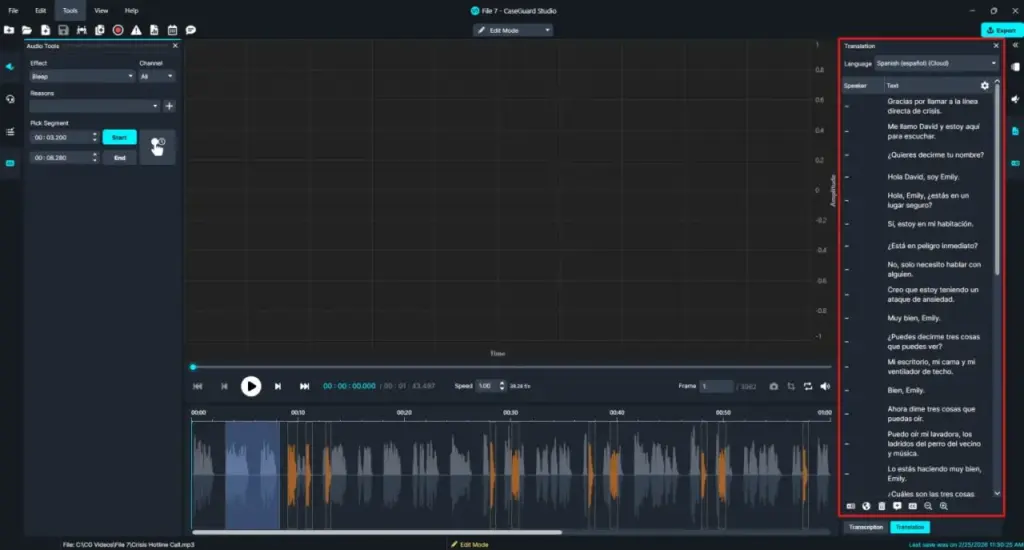
- Under each Translated sentence, you can:
- “Mute”

- “Bleep”

- “Change Voice”

- “Edit the translation”

- At the bottom of the panel you have the options for:
- Automatic Translation: Translate into another language
- Manual Translation: Add your own translation
- Delete Translation: Delete the entire translation
- Add Sentence: Edit a sentence within the translation
- Burn Captions to File: Attach translation inside the video
- Increase/decrease font size within the Panel
- Once you have reviewed the Translation, click the Export button from the top right of CaseGuard to export your file.
Conclusion
CaseGuard’s Audio Translation makes translating spoken content fast and easy. Whether during AI Audio processing or from the Translation Panel, you can streamline multilingual workflows.
For any questions or assistance, reach out to our team at 📧 [email protected].
Was this article helpful to you?
No
Yes
1