Overview
CaseGuard offers a wide range of Image Tools designed to meet the needs of users who want to modify, redact, and enhance their images.
Similar to the Video Redaction Tools, CaseGuard allows Manual and Automatic Redactions on all images. Users have the option to select a shape, enhancement effect(s), and Redaction Reason for any object(s) present in their images. Additionally, all images that have text can also be redacted instantly using the Text Detection feature- without the use of any AI.
Using the Merge within the Edit Tool will merge images into an mp4 video file resulting in reducing manual work for users interested in redacting or editing more than one image at a time. The Transform Tool, on the other hand, is helpful when rotating images for better visualization. Users looking to read or edit images upside down or from an odd angle have the ability to do so with these tools!
Let’s Navigate the Image Tools!
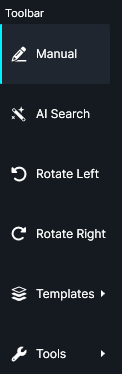
Manual:
Click the Manual Button to manually redact an image. This feature lets you draw a shape that can be positioned anywhere on the image. See the example video below for reference.
AI Search:
Select AI Search to open the CaseGuard Automatic Detection popup. The system will use your chosen settings to automatically detect and apply effects to objects such as faces, screens, license plates, vehicles, bodies, and more.
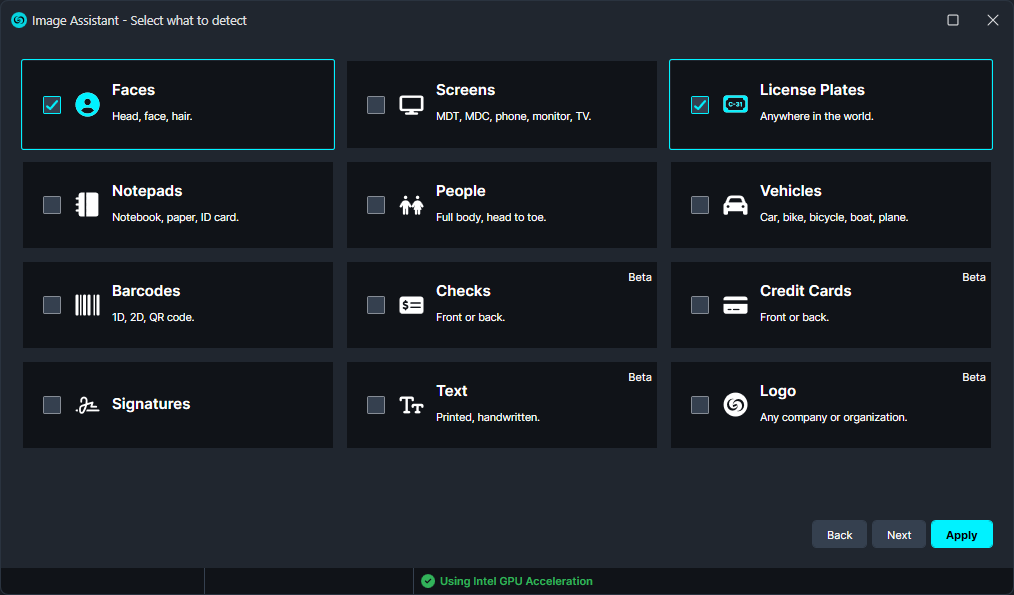
- Faces/Heads: click
 to detect and redact all faces in an image.
- Screens: click
 to detect and redact all computer, cellphone, and device screens in an image.
- License Plates: click
 to detect and redact all license plates in an image.
- Papers: click
 to detect and redact all paper documents/reports in an image.
- People: click
 to detect and redact all people in an image.
- Vehicles: click
 to detect and redact all vehicles in an image.
- Barcodes:Click
 to detect and redact all barcodes in an image.
- Checks: click
 to detect and redact all checks in an image.
- Credit Cards: click
 to detect and redact all credit cards in an image.
- Signatures: click
 to detect and redact all signatures in an image.
- Text: Click
 to have the system automatically detect and redact any text in your image.
- Logo: Click
 to have the system automatically detect and redact any text in your image.
Rotate Left:
- Click
 to rotate your image 90 degrees counterclockwise.
Rotate Right:
- Click
 to rotate your image 90 degrees clockwise.
Template:
The Template tool allows users to save a set of image redactions as a template and apply the same redaction layout to other images with a similar structure.
Image Tools:
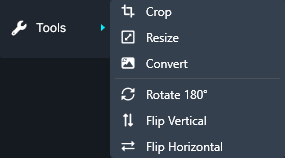
- Crop: The Crop tool is an editing tool in CaseGuard that enhances the workflow of users by cropping specified sections of a video. By using the Crop tool, users can crop specific frames of a video to highlight a specific section of a video.
- Resize: The Resize tool allows users to modify an image’s pixel dimensions by either entering a percentage or specifying exact pixel values.
- Convert: The convert tool allows you to convert the image file type to another type (such as jpg, png, tiff, etc).
- Rotate 180 : Click
 to rotate your image 180 degrees clockwise.
- Flip Vertically: Click
 to flip your image vertically.
- Flip Horizontally: Click
 to flip your image horizontally.
Conclusion
CaseGuard Studio’s Image Redaction Tools make editing and protecting images fast and precise. Manual and AI-powered redactions, along with tools like Crop, Convert, and Rotate, let users efficiently handle single or multiple images while maintaining professional-quality results.
For any questions or issues about image redaction, please contact CaseGuard Support at [email protected].
Was this article helpful to you?
No
Yes
2