Overview
When redacting audio, CaseGuard’s Audio Activity panel is the easiest way to detect and manage bulk groups of redacted Personally Identifiable Information (PII), such as Names, Social Security Numbers (SSNs), phone numbers, and addresses from audio recordings.
After using AI Audio, CaseGuard’s Audio Activity Panel automatically groups the different types of Personally Identifiable Information (PII) together. This makes it easier for CaseGuard users to redact specific categories of PII all at once!
As an illustration, if an investigator needs to censor Personally Identifiable Information (PII) in a phone call, CaseGuard’s Analytics can automatically transcribe the call and identify all instances of PII. With a single click, you can easily censor names and any other category of PII!
Follow the steps to Navigate the Audio Activity Panel
Add your audio or video file containing audio in CaseGuard Studio.
Run AI Audio on your file:
- Select the language of your file (if not English)
- Select the number of speakers.
- Click Apply
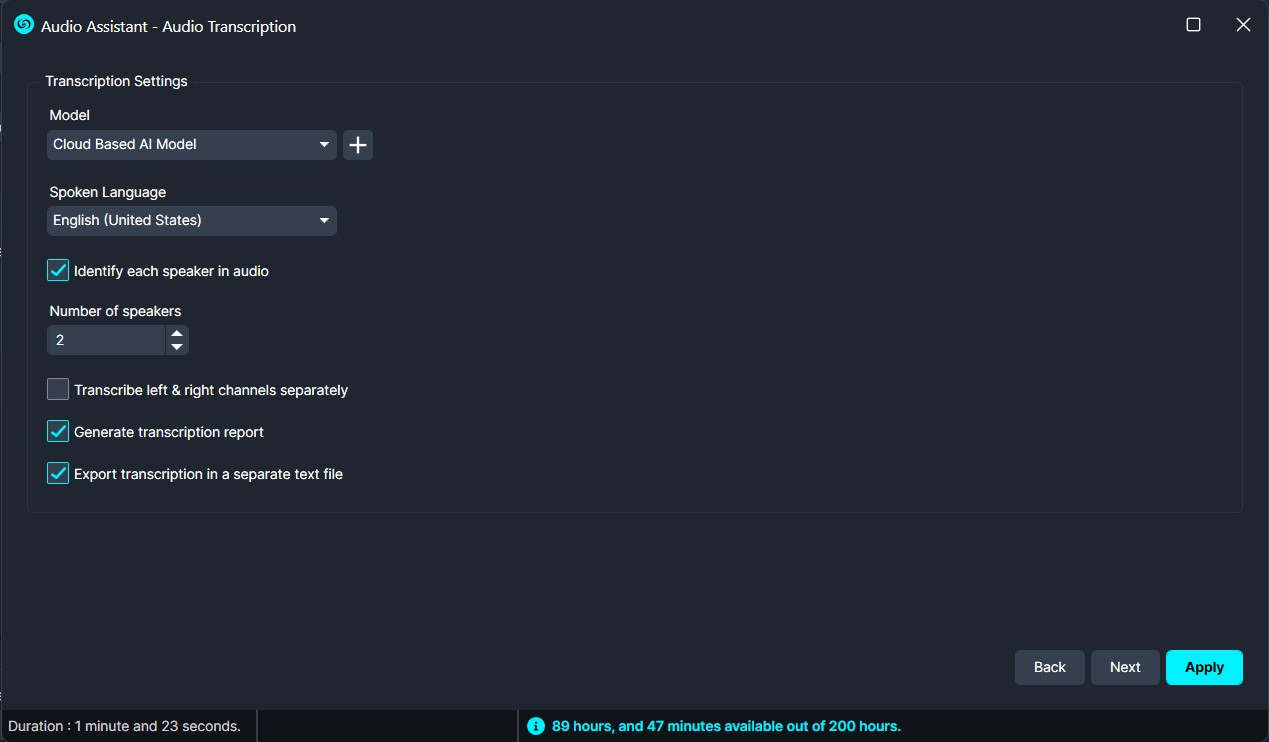
Next, click on audio activity on the activity panel.
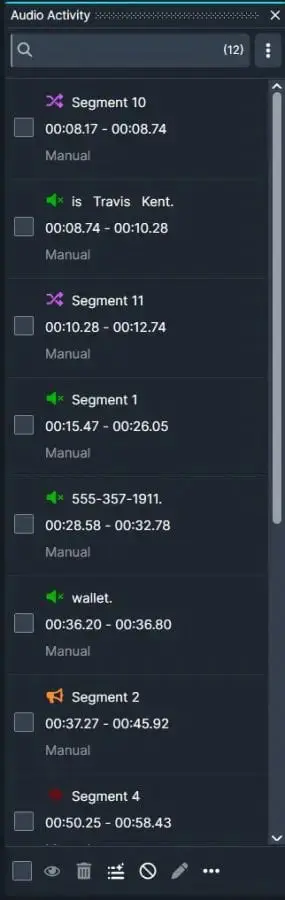
Edit options for Audio include:
- “Mute”
 to mute certain words or phrases you would like censored.
- “Bleep”
 to bleep certain words or phrases you would like censored.
- “Block“
 To prevent the word or phrase from being automatically censored by the system.
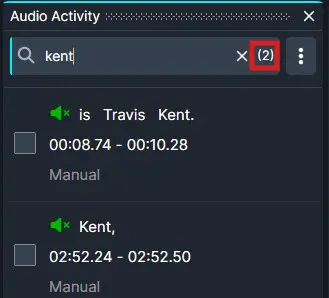
You can also use the search bar in the Analytics Panel to search for the word or type of Personally Identifiable Information (PII) you’ve redacted. All instances of the word will appear in the Analytics Panel.
- Note: The number next to the search shows the total number of Personally Identifiable Information (PII) found.
To search for a specific type of effect, click the Search bar, select “Effect” then “Is”, and then select the Category of effect you would like to see.
Once you have reviewed the redactions, click the Export button at the top right of CaseGuard to export your redactions.
Conclusion
The Audio Activity Panel is a useful tool in searching for audio redactions, bulk editing/deleting them, and keeping track of them. If you have any questions about the Audio Activity Panel, the Support Team is here to help at 📧 [email protected].
Was this article helpful to you?
No
Yes
2