Overview & Common Use Case
When working with large volumes of video files, you may need to extract audio tracks for transcription, review, or evidence sharing. Rather than processing each file individually, CaseGuard Studio’s Bulk Processing feature allows you to extract audio from multiple videos at once, saving time and ensuring consistency.
This article walks you through how to extract audio in bulk using CaseGuard Studio.
How to Extract Audio in Bulk in CaseGuard Studio
Follow the steps below to extract audio from multiple video files:
- Open CaseGuard Studio.
- If your project isn’t open, click File → New Project.
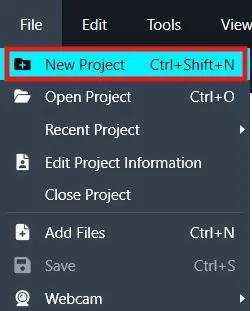
-
When the file import wizard appears, you do not need to add any files.
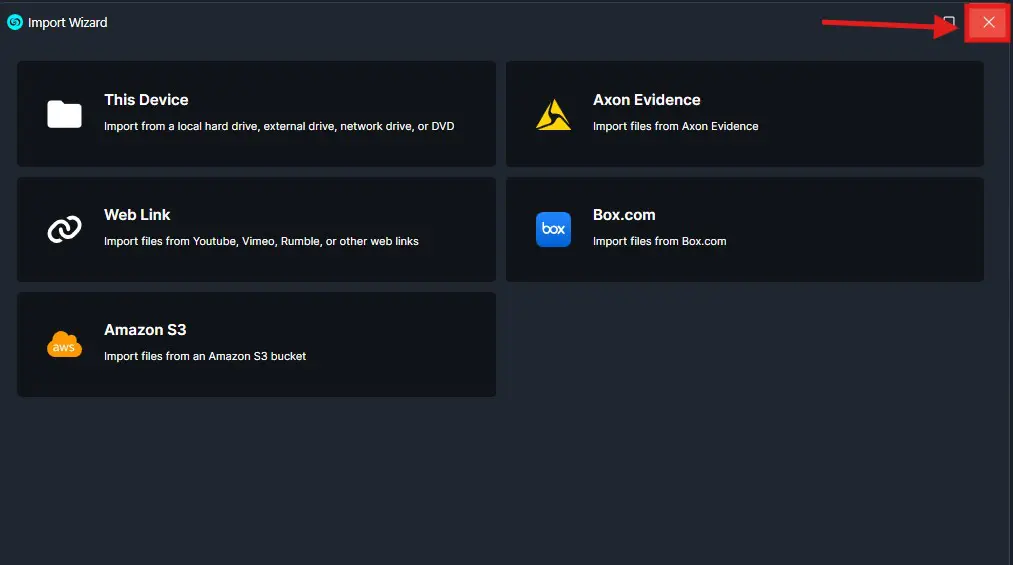
-
In the top-left toolbar, click the Bulk Processing button.
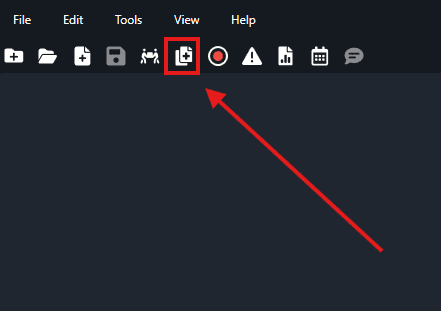
-
The Bulk Processing Wizard will open.
- Select Video as the media type.
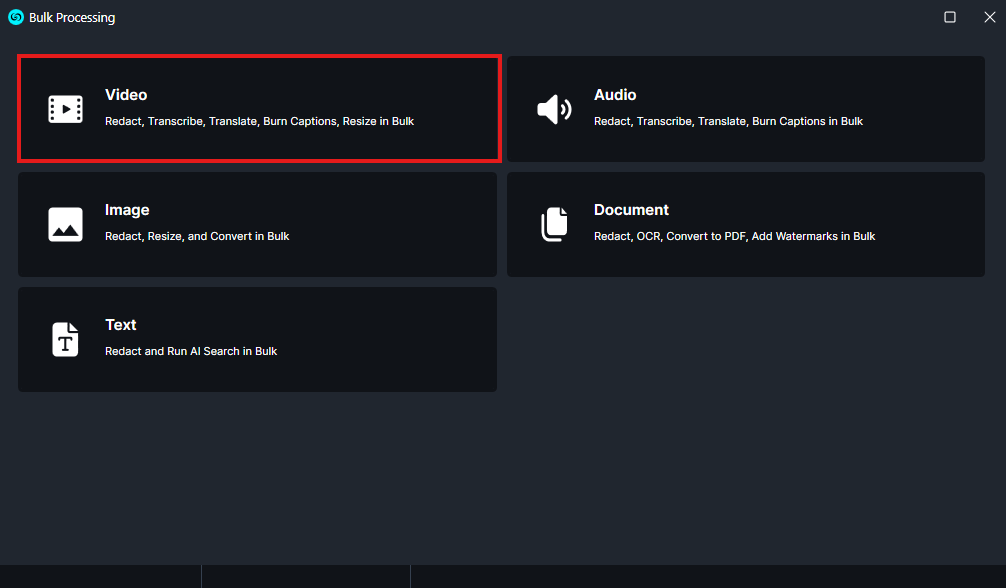
-
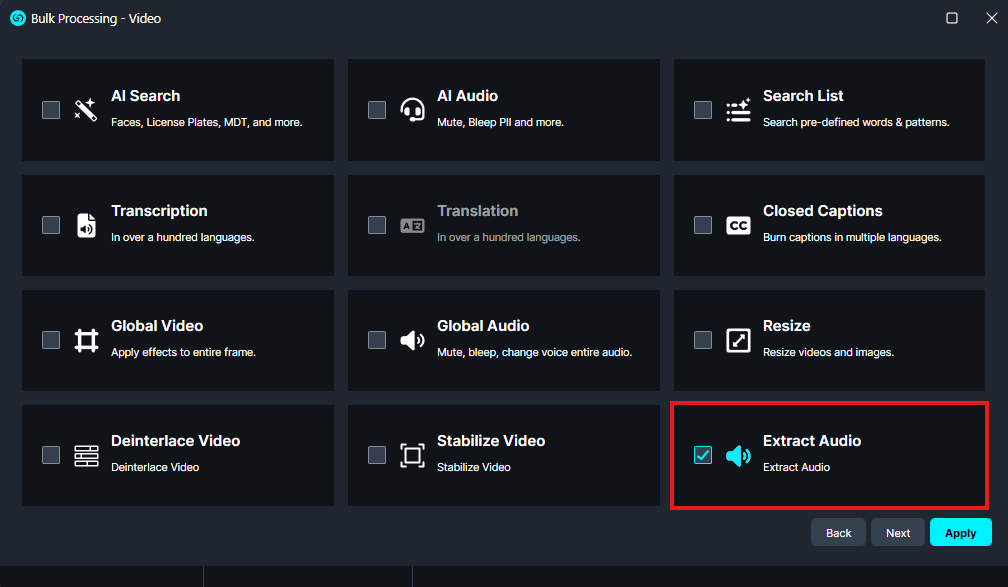
On the next screen, choose Extract Audio as the function you want to perform.
-
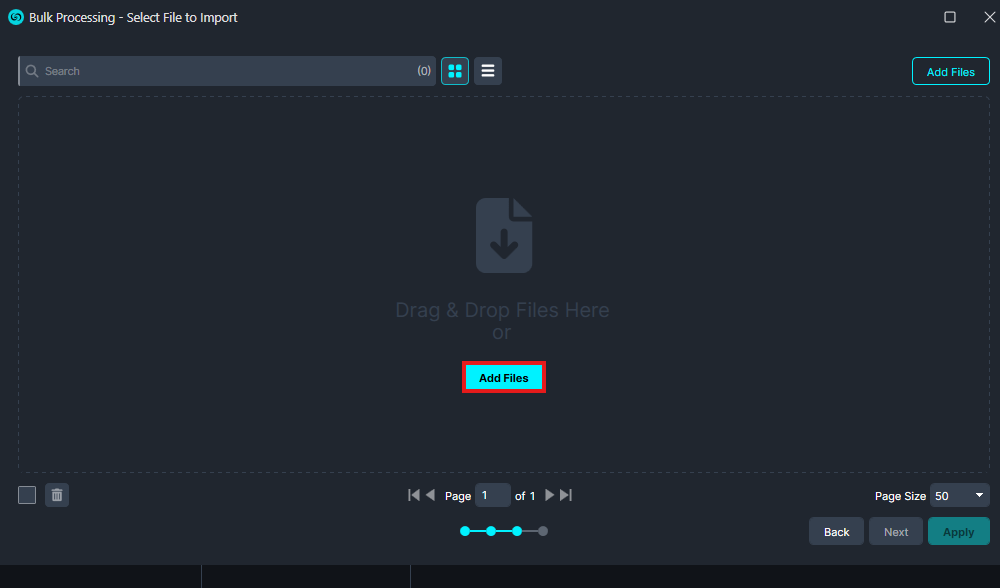
Add the video files you want to extract audio from.
-
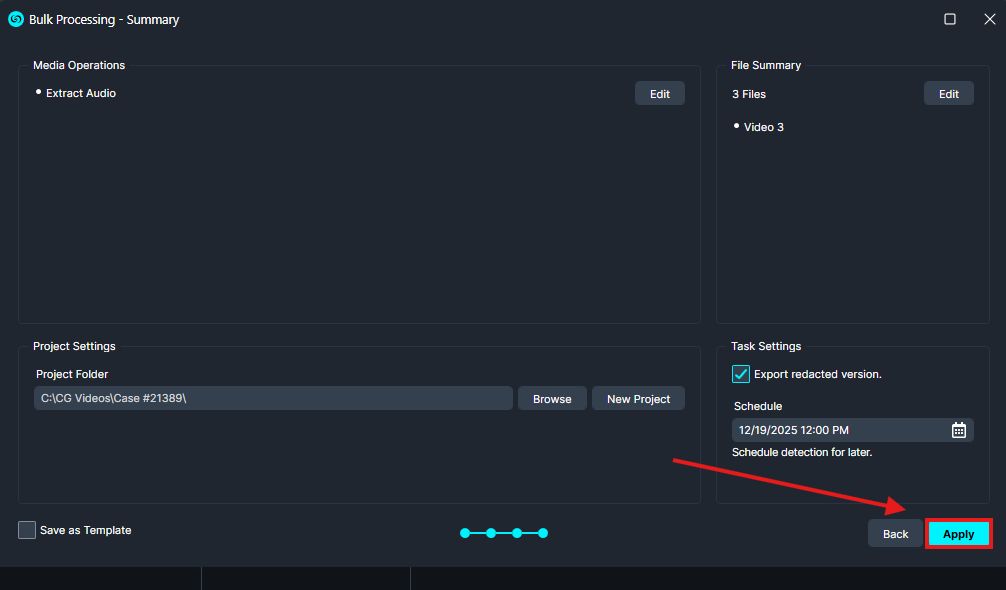
The final screen will display a summary of the operation. Click apply to finalize this process.
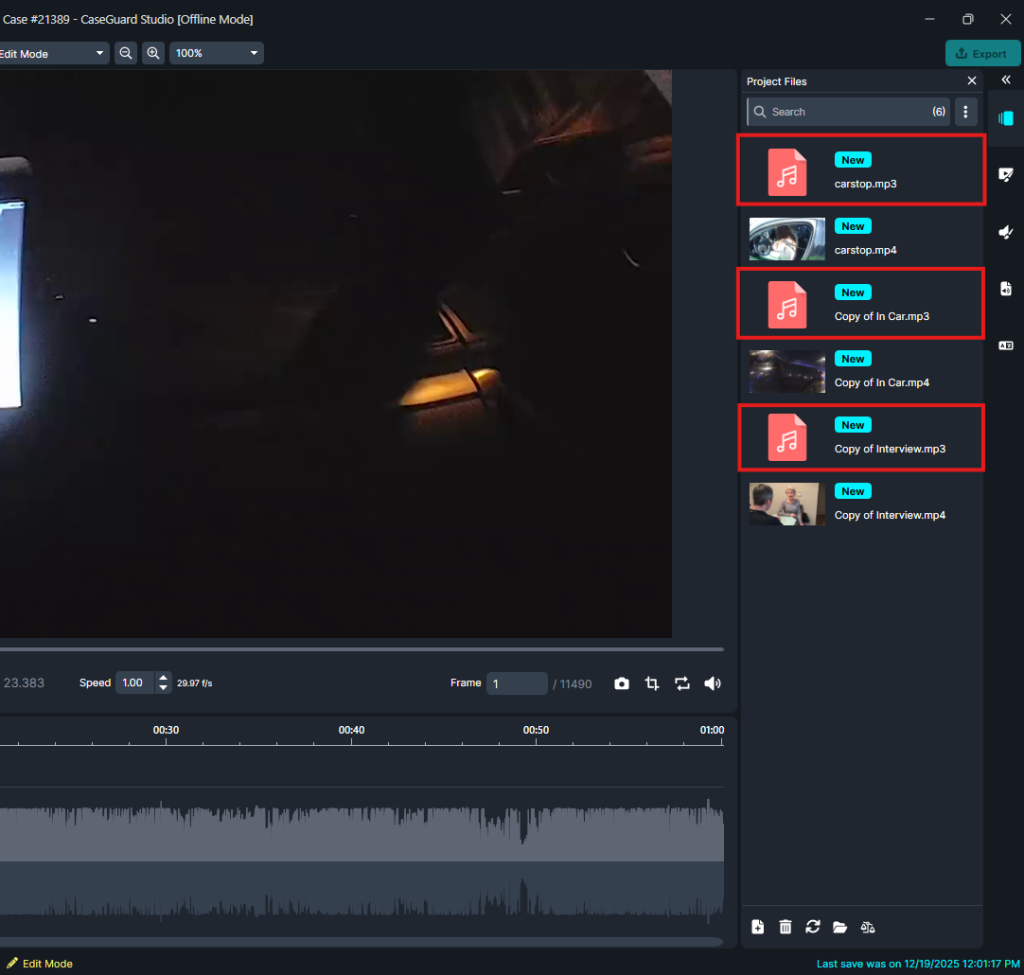
- Your audio files will be extracted and will be available on your left hand side under project files.
-
Conclusion
- Bulk audio extraction in CaseGuard Studio streamlines workflows that involve transcription, analysis, or evidence review. By using the Bulk Processing Wizard, you can efficiently extract audio from multiple videos in just a few steps.
- If you need assistance with bulk processing or any other CaseGuard Studio features, our support team is here to help.
- 📧 [email protected]
Was this article helpful to you?
No
Yes