Overview
CaseGuard Studio provides flexible tools for adding, editing, and aligning closed captions on audio and video files. You can generate captions automatically using AI Audio, apply redactions at the same time, or manually create and fine-tune captions for full control over timing and formatting. These tools help ensure accessibility, accuracy, and compliance while keeping captions perfectly aligned with spoken content.
Adding Closed Captions Using AI Audio
-
Open the file you want to apply closed captions to in CaseGuard Studio.
-
On the left vertical toolbar, select AI Audio.
-
Enable Closed Captions along with AI Audio.
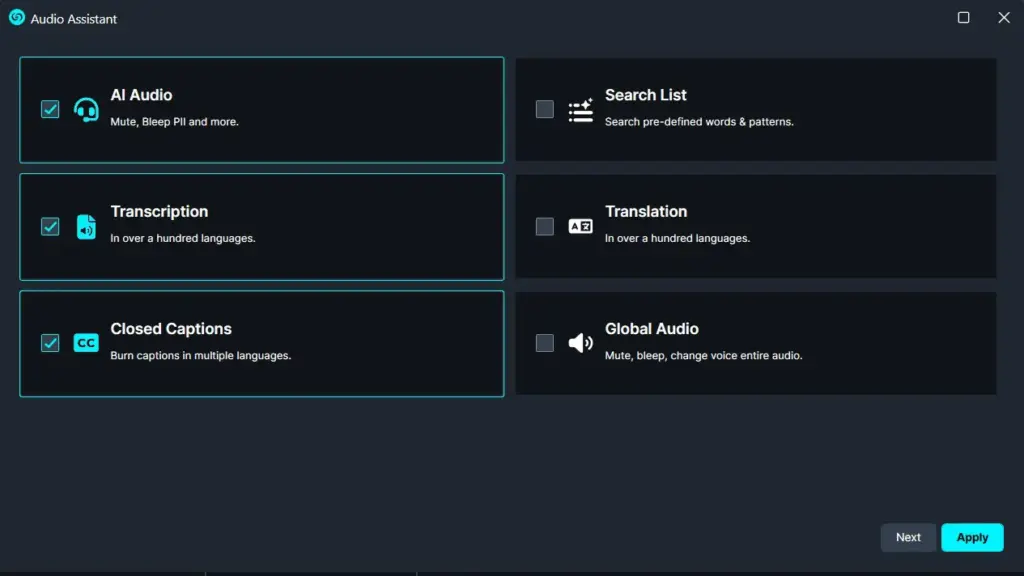
-
Configure your PII redaction settings as needed.
-
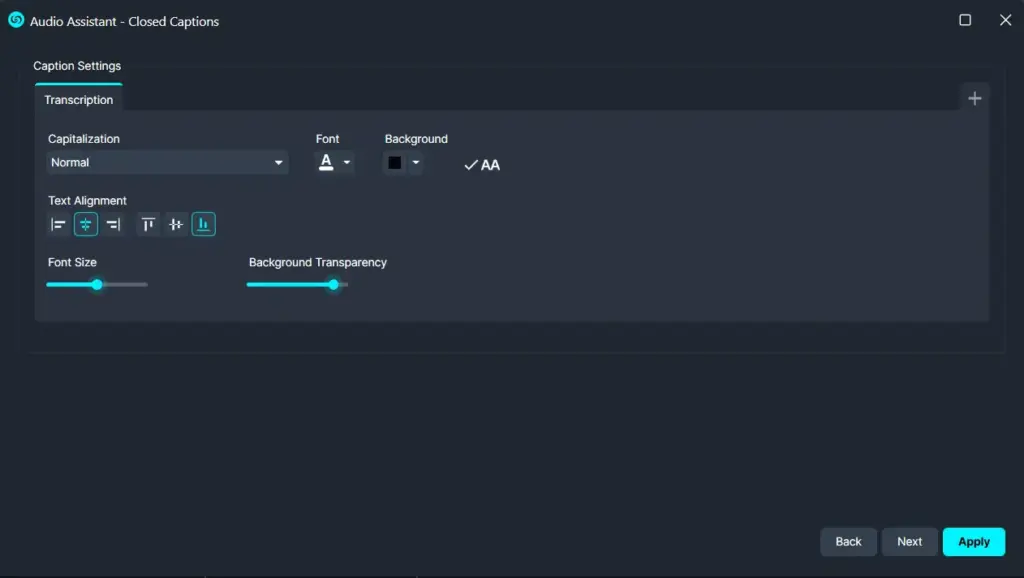
In the Captions Settings window, choose your preferred options:
-
Capitalization
-
Font
-
Background color
-
Text alignment
-
Background transparency
-
Click Apply to run AI Audio and generate closed captions.
Viewing and Navigating Captions
-
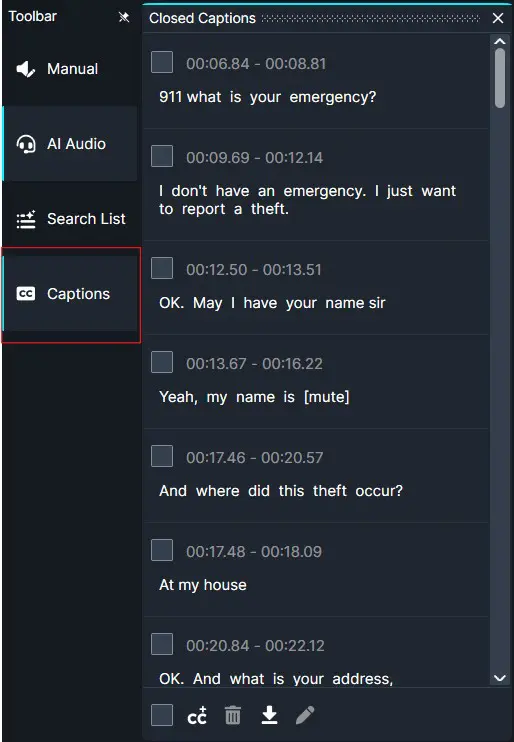
On the left vertical toolbar, select Captions to pin the Closed Captions Panel.
-
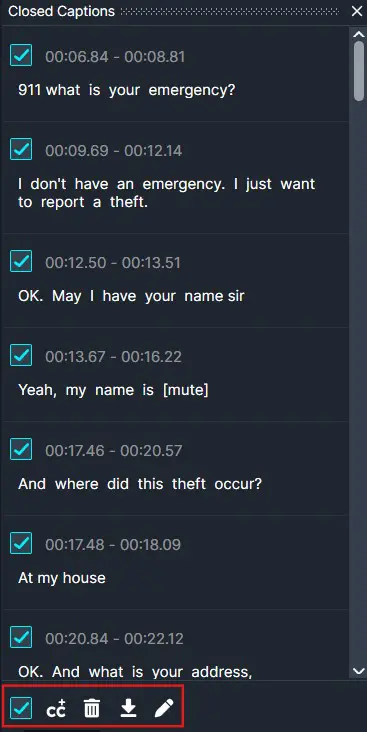
Once processing is complete, all captions will appear in the panel with their corresponding timestamps, showing exactly when each phrase is spoken.
-
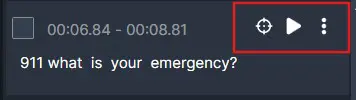
When you hover over any caption line, you’ll see the following icons:
-
Target icon – jump to the caption’s position in the timeline
-
Play icon – play only that caption segment
-
Three dots – align or delete the caption

Adding and Editing Captions Manually
-
To add a manual caption:
-
Highlight the desired section on the audio wave.
-
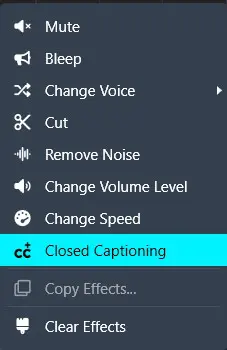
Right-click the highlighted segment and select Closed Captioning.
-
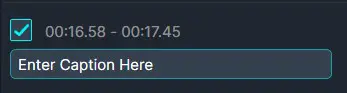
An empty caption will appear in the Closed Captions Panel.
-
Enter your custom caption text directly in the panel.
-
To adjust alignment, click the three dots next to the caption, select Align, and choose your preferred alignment option.
Bulk Editing Closed Captions
-
To edit multiple captions at once:
-
Use the checkbox at the bottom of the Closed Captions Panel to select all captions, or
-
Select individual checkboxes next to specific captions.
-
You can then:
Tip: Creating Captions from Audio Tools
Conclusion
CaseGuard Studio’s closed captioning tools give you full control over how captions are generated, edited, and aligned. Whether you rely on AI for automation or manually fine-tune captions for precision, these features help ensure your content is accessible, compliant, and professionally presented.
Was this article helpful to you?
No
Yes