Exporting your redacted files to a thumb drive in CaseGuard Studio is a simple process that ensures your work is easily portable and backed up to an external device. Whether you’re preparing files for transfer, backup, or sharing, this guide will walk you through how to set your thumb drive as the export destination for your projects in CaseGuard Studio.
Step-by-Step Instructions
-
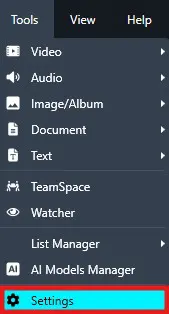
At the top left of your CaseGuard Studio, click Tools, then select Settings.
-
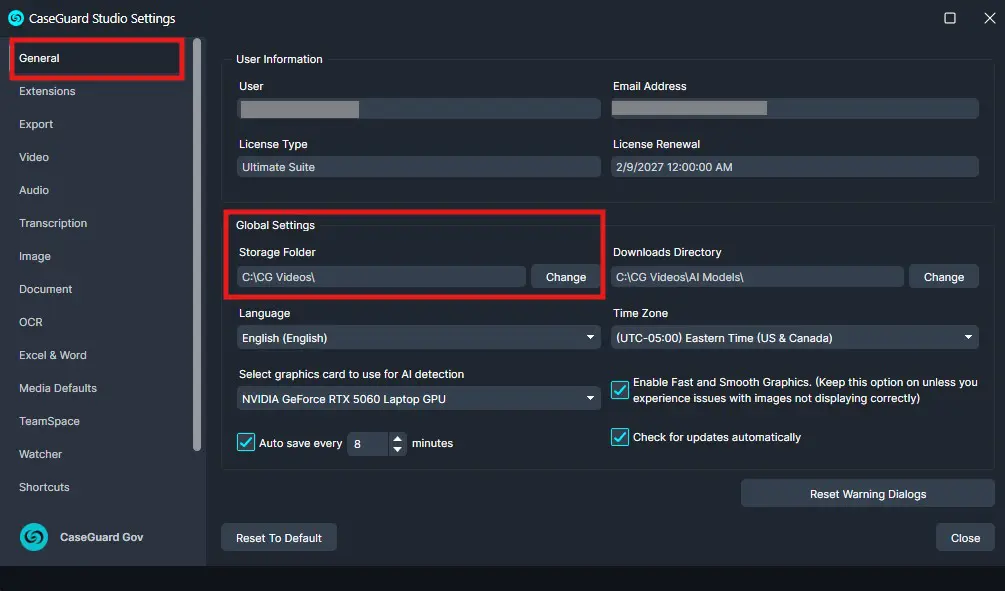
In the General tab of the Settings window, find the Global Settings category.
-
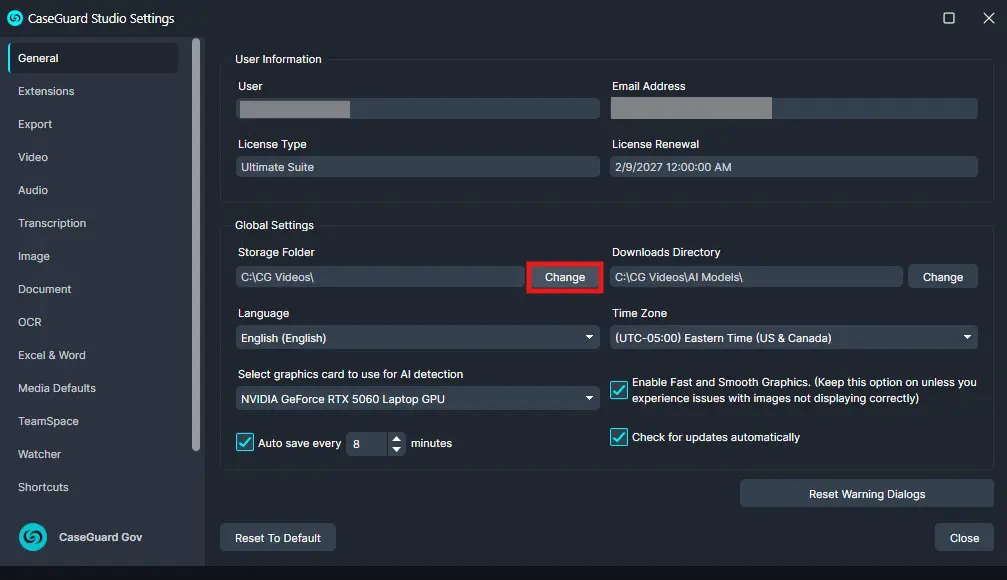
You’ll see the current Storage Folder path for CaseGuard Studio. Click Change.
-
From the list of available drives, choose your thumb drive (USB drive).
-
After selecting your desired drive, click the folder you want to use and then click Select Folder.
-
⚠️ Note: This location will store all project information, not just exported files.
-
💡 Tip: For best performance, we recommend using a local or high-speed external drive.
-
To apply the new storage location, create a new project in CaseGuard Studio.
-
Now, when you export files from this new project, they will automatically be saved to the thumb drive you selected.
Conclusion
Exporting to a thumb drive in CaseGuard Studio helps you keep your projects mobile and secure. By changing the default storage location in your settings and creating a new project, you can ensure that all exported files are saved directly to your external drive. This process only takes a few steps and gives you more control over your file management and backup workflow.
Was this article helpful to you?
No
Yes