Overview & Common Use Case
Before you can import files from Box.com into CaseGuard Studio, you need a valid CaseGuard Studio license that includes cloud integration features. If you don’t have access yet, please contact our sales team at [email protected] to schedule a demo or purchase a license.
After purchasing a license, make sure to install CaseGuard Studio on your device to prepare your system for file import and redaction workflows.
Once your license is active and the software is installed, CaseGuard Studio allows you to securely connect your Box.com account and import files directly, without the need to download files locally. This enables you to quickly begin reviewing and redacting content.
This article walks you through how to upload a video from Box.com into CaseGuard Studio using the built-in import wizard.
How to Upload a Video from Box.com
Follow the steps below to import videos from Box.com into CaseGuard Studio:
-
Open CaseGuard Studio.
-
In the top-left corner, click File → New Project.
-
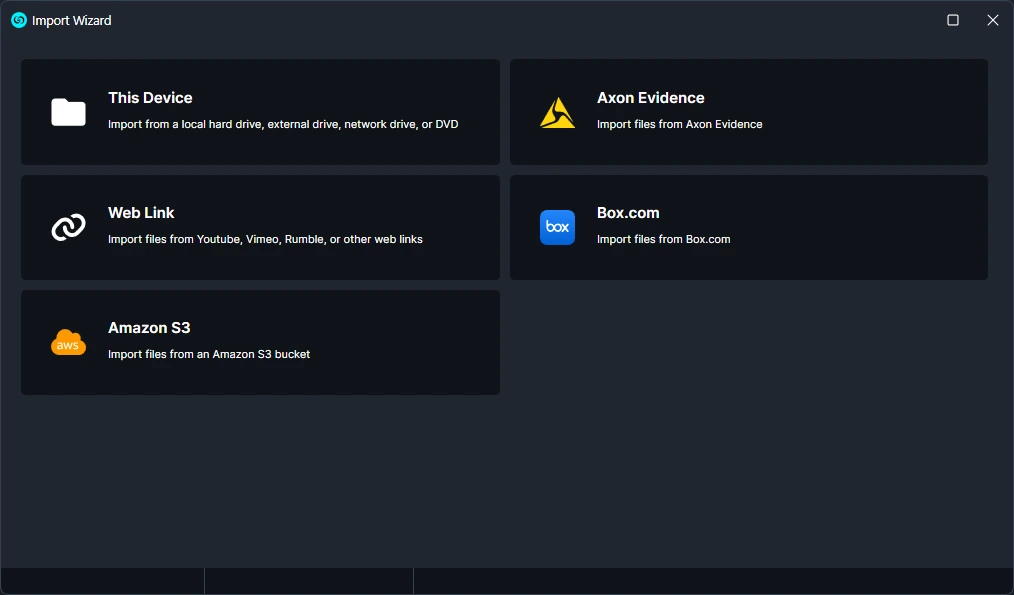
The Import Wizard will appear. From the list of available sources, select Box.com.
-
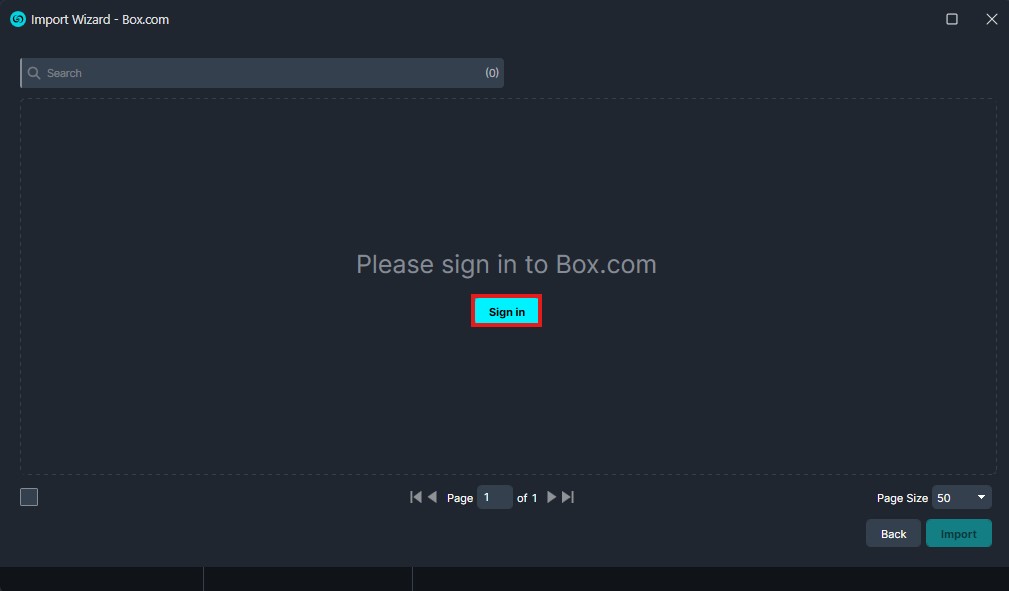
Click the blue Sign In button in the center of the window.
-
After clicking sign in, a new browser window will open, redirecting you to the Box.com website.
-
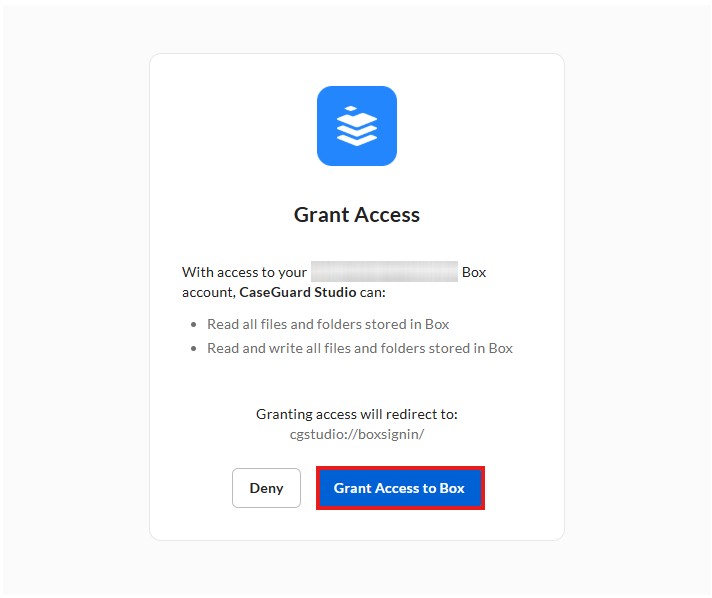
After signing in, you will be prompted to grant access to your Box.com account.
-
Click Grant Access.
-
Then, a confirmation pop-up will appear asking you to open CaseGuard Studio.
-
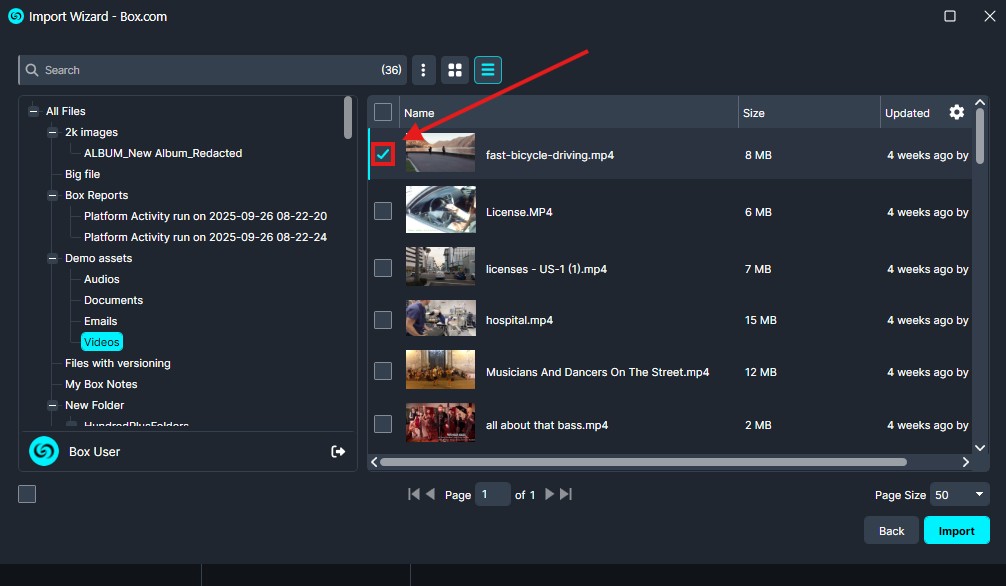
Once authorized, the Import Wizard will populate with your Box.com content:
-
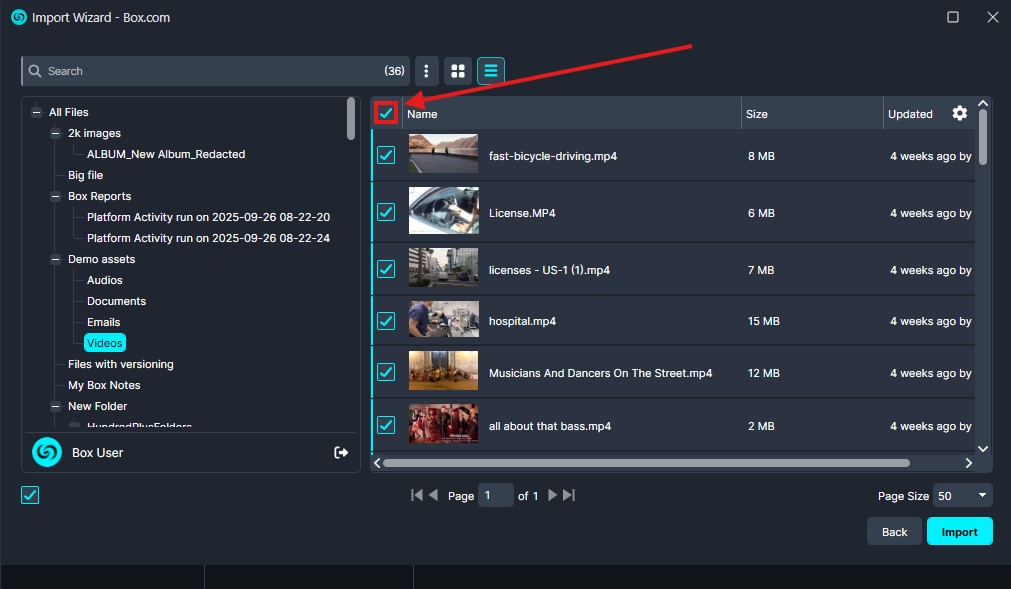
Select the files you want to import:
-
Click the checkbox next to each file, or
-
Use Select All in the top-left of the file list to import everything in the folder.
-
When finished, click Import in the bottom-right corner.
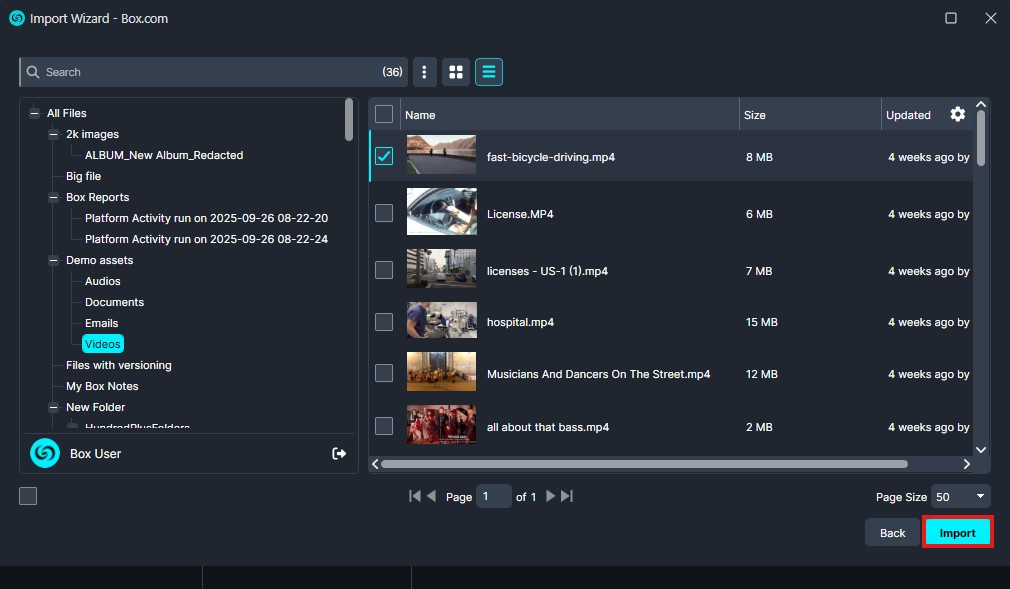
Now your files will begin importing into CaseGuard Studio. You can start editing them immediately once the process completes.
Conclusion
Importing videos directly from Box.com into CaseGuard Studio streamlines your workflow by eliminating unnecessary downloads and ensuring secure file handling. With just a few clicks, you can bring your cloud-stored videos into CaseGuard Studio and begin redacting or reviewing right away.
If you need assistance with Box.com imports or any other CaseGuard features, our support team is here to help. 📧 [email protected]
Was this article helpful to you?
No
Yes