Use Case
Our agency requires us to use the filled effect for all of our video redactions. Is it possible to have it always selected so I do not have to change each time before I redact in CaseGuard?
In this guide, we will walk you through the steps to easily customize any of your CaseGuard defaults so that CaseGuard is tailored to your needs.
Follow these steps to customize your CaseGuard media defaults!
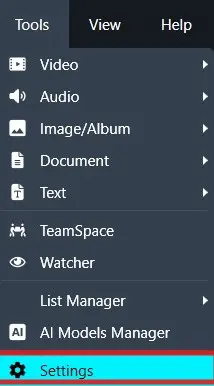
- Open CaseGuard and click Tools in the top menu. From the drop-down, select Settings to access options that let you customize CaseGuard for your needs
- In the Settings window, use the left-hand menu to select Media Defaults. Here, you can adjust all default settings for handling media in CaseGuard.
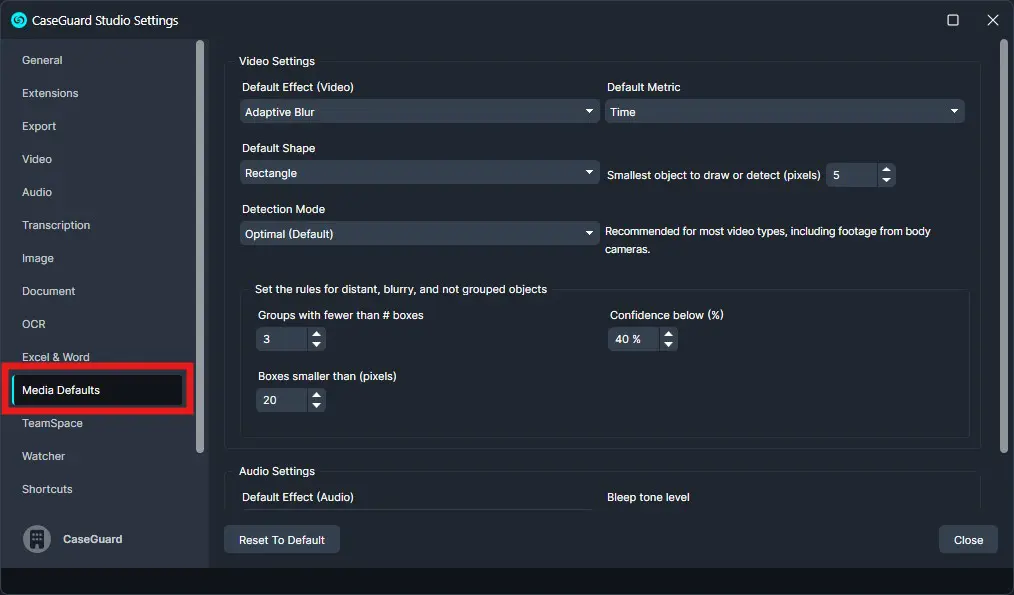
- The default media settings for the video can be adjusted here, such as changing the effect to Pixelate or Adaptive Blur. For audio, you can switch between Bleep and Mute depending on your preference.
- Once you’ve configured your Media Default Settings with the desired effects, simply close the Settings window to save your changes. These settings will now be applied automatically as the default whenever you perform video redactions in CaseGuard.
Conclusion
If you have any questions or need assistance customizing your Media Defaults settings, our support team is here to help. Email us at [email protected] for fast guidance and solutions. By following these steps, you’ll save time, streamline your redaction workflow, and ensure CaseGuard is fully optimized for your agency’s needs.
Was this article helpful to you?
No
Yes