Overview
This guide provides an overview of CaseGuard Studio’s Crop tool and how it helps streamline your video editing workflow. You’ll learn how to crop specific frames to highlight relevant areas, focusing attention on important content while minimizing distractions from other parts of the video. By isolating key sections, you can quickly enhance clarity, improve presentation, and make video content easier to analyze.
Follow the Steps to Crop Videos in CaseGuard!
- Add the Video to Your Project
Open CaseGuard Studio and add the video you want to edit to your project. You can do this by dragging the video file into the project timeline or using the Import option.
Select the Crop Tool
Select the crop icon within the video player. This will activate the cropping function for your selected video.
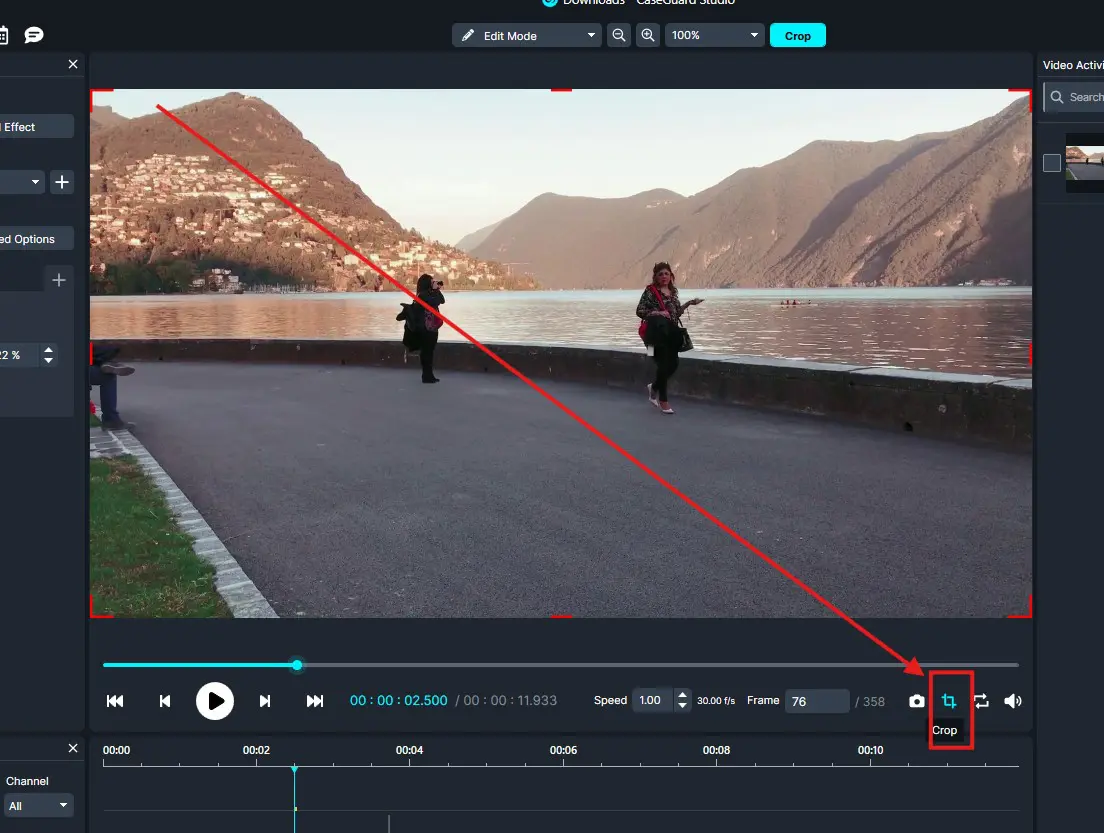
Adjust the Crop Area
Once the crop tool is active, a red outline will appear around the video.
Click and drag the edges or corners of the red outline to define the area of the video you want to keep.
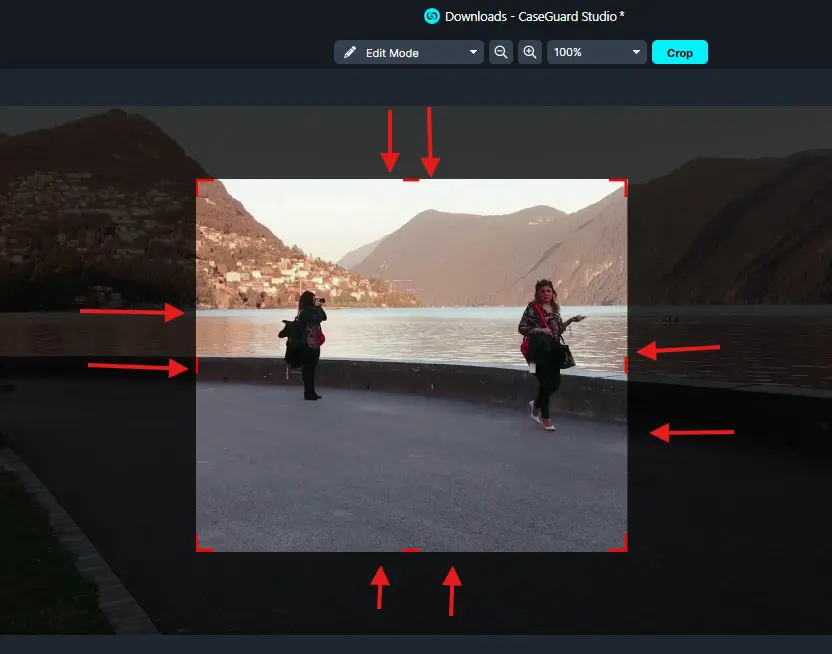
Apply the Crop
After adjusting the crop area to your satisfaction, click Crop.
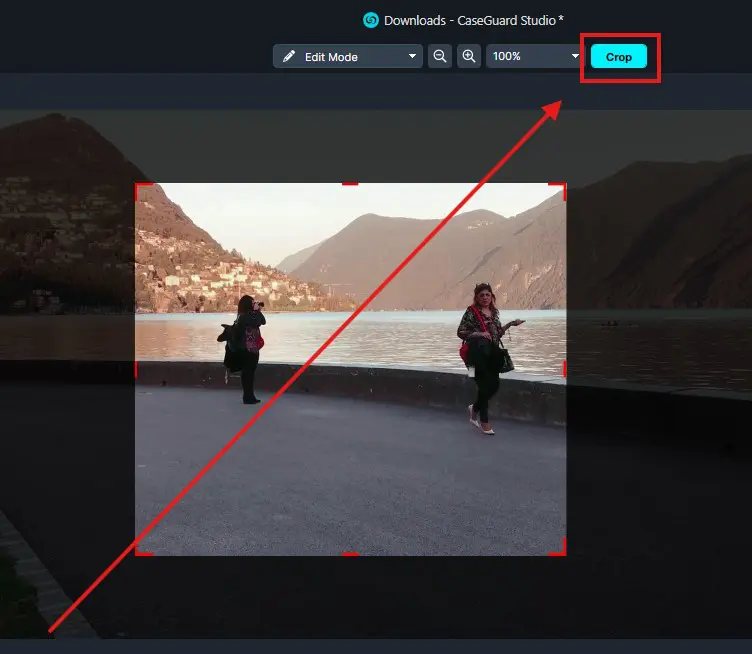
CaseGuard Studio will create a new video file in your project files with the crop applied. This ensures your original video remains unchanged.
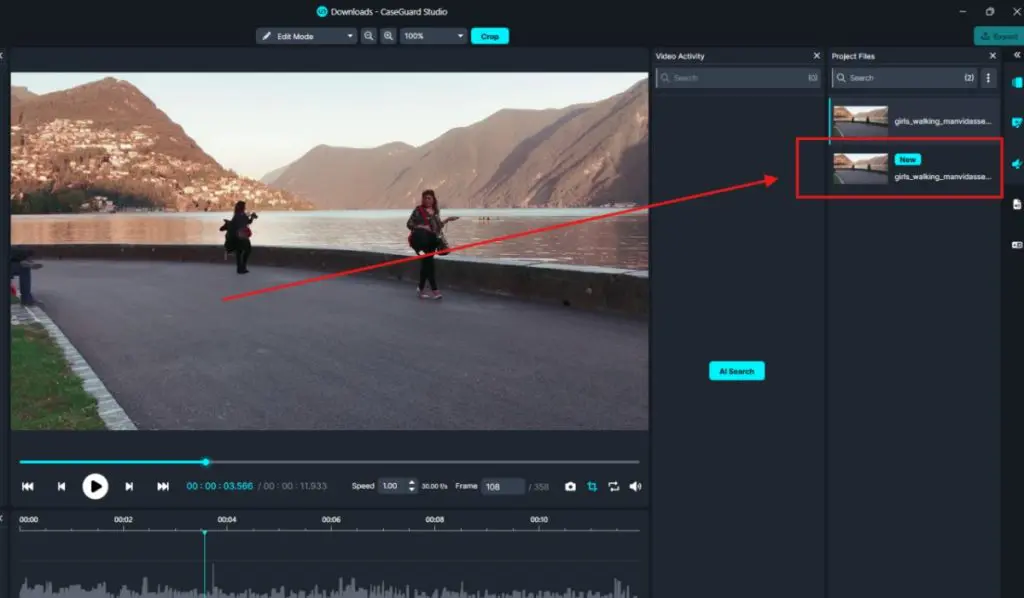
Conclusion
The Crop Tool allows you to remove unwanted areas and focus on the most important content in your footage. Whether you’re highlighting key evidence or refining your video’s framing, the Crop Tool helps you achieve clean, professional results.
For guidance on using the Crop Tool, the Cut Tool, or any other features, our support team is always ready to assist:
📧 [email protected]