In this article, we will cover:
- The real difference between covering text with a black box and actually redacting it, and why only one of them is safe to send out.
- Why a redaction can fail even when it looks correct, using a real 2011 federal court case as the example.
- A step-by-step walkthrough for properly blacking out text in a PDF, from checking if it’s text-searchable to exporting a locked final file.
- Whether a redacted PDF can be un-redacted once it’s been done correctly.
- How to handle redaction in a Word document, since Word has no built-in redaction tool.
- What to look for in document redaction software if you’re processing more than the occasional file.
What “Blacking Out” Text Actually Means (and Where It Goes Wrong)
When most people talk about redaction, they picture a black rectangle sitting on top of a sentence. That’s the visual result, but it’s not the mechanism. True document redaction means the underlying data, the actual characters, and often metadata sitting behind the page, is gone. Not covered. Gone.
This distinction isn’t theoretical. In 2011, during the Apple vs. Samsung patent litigation, a federal judge’s own ruling was formatted in a way that exposed the sections she’d tried to redact. The underlying text was still intact in the PDF, so anyone who copied the “redacted” sections and pasted them elsewhere could read exactly what was meant to stay hidden. It made headlines for exactly the reason you’d expect: if a federal court’s own filing can get this wrong, it’s not exactly a rare mistake.
That’s the risk with drawing a box in a basic PDF viewer. If the tool isn’t built to actually delete the underlying content, the box is cosmetic. Anyone with a text-selection tool, a copy-paste shortcut, or even a screen reader can undo your “redaction” in seconds.
The Legal Side: Why Redaction Isn’t Optional
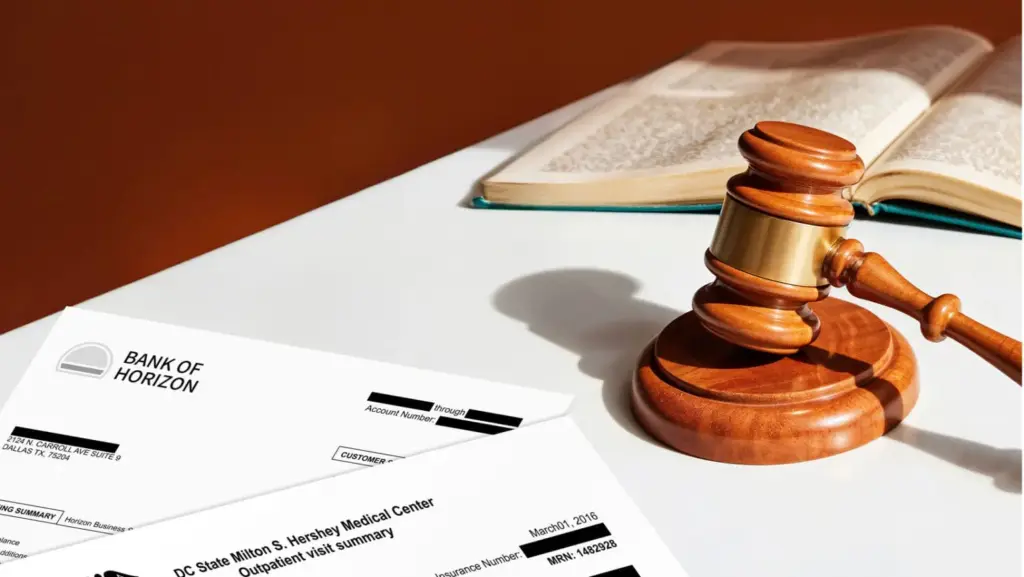
Redaction shows up as a legal requirement more often than people expect, not just in criminal cases, but in FOIA responses, HR files, healthcare records, and public records requests generally. The Freedom of Information Act (5 U.S.C. § 552) is a good example: it requires federal agencies to release records on request, but it also carves out specific statutory exemptions like personal privacy, law enforcement records, and a handful of others, where information has to be withheld or removed before release. Getting that removal wrong doesn’t just create an embarrassing headline; it can mean a records request has to be reprocessed, or worse, that private information about a real person ends up public because the redaction didn’t actually hold.
How to Black Out Text in a PDF, Step by Step
Here’s the actual process, whether you’re doing it by hand or letting software do the heavy lifting:
1. Check if your PDF is text-searchable. Open it and try Ctrl+F for a word you can see. If it finds nothing, you’re looking at a scanned image, not real text, which means the software can’t “see” the words yet, even though you can.
2. Run OCR if it’s not text-searchable. Optical character recognition (OCR) converts scanned images into machine-readable text. It works by cleaning up the image (straightening lines, removing stray marks), then matching each character against known patterns. For anything handwritten, more complex models step in, trained to guess at messier shapes. You don’t need to understand the mechanics to use it, but it’s worth knowing this step exists, because skipping it is the single most common reason people think they’ve redacted a scanned document when they’ve actually just drawn a box over an image.
3. Identify what needs to come out. This is where you’re looking for Social Security numbers, addresses, phone numbers, financial account numbers, minors’ information, or anything else the relevant rule or client requires. Document redaction software built for this can flag these automatically using pattern matching (a string that looks like 123-45-6789 is almost certainly an SSN) combined with more flexible detection for PII that doesn’t follow a clean pattern such as names, informal phrasing, context-dependent references.
4. Apply the redaction, not just the box. A real redaction tool removes the underlying text and replaces it with a solid block, so there’s nothing left to select, copy, or extract even if someone edits the color or opacity of the box. General-purpose editors like Adobe Acrobat are built for editing and reviewing documents, not for permanently destroying the data underneath, so you need something purpose-built for redaction specifically. If your tool only lets you draw a shape on top of the page, you’re not redacting, you’re decorating.
5. Check your work before you send it. Try to highlight the redacted section. Try to copy and paste it. Open the file in a second program if you can. If any of that surfaces the original text, the redaction failed, and this is the point where you find out, not after the document is already public.
6. Export to a locked, flattened format. Once you’re confident the redaction held, save it in a way that prevents someone from reopening and editing the file to reverse your work.
Can a Redacted PDF Be Un-Redacted?
If it was done properly, no. That’s the whole point of the process above: the original text isn’t hidden behind the black box, it’s deleted. There’s nothing left to recover, you can’t unredact a PDF that was redacted correctly.
But “properly” is doing a lot of work in that sentence. The Manafort filing is a great public example of why the answer isn’t automatically yes. The black boxes existed, but the text underneath was never actually removed, so it wasn’t really redacted at all, just disguised. Anytime you hear about someone managing to unredact a PDF, it’s almost always this same failure: someone used a visual cover instead of a real deletion.
Redacting a Word Document
The same principle holds outside of PDFs. Microsoft Word doesn’t have a built-in redaction tool the way some PDF software does. Highlighting text and changing the font color to black, or using strikethrough, does nothing to remove the underlying content from the file. Anyone can select it, change the formatting back, or find it in the document’s revision history. If you need to redact a Word file, the safer route is either converting it to PDF first and redacting there with proper software, or using a tool that handles Word files directly, one that strips the content, not just the formatting, before export.
Features Worth Knowing About in Document Redaction Software

Play Video
Beyond the basic black-box-and-export flow, most professional redaction tools include a few features that save real time once you’re dealing with more than a handful of pages:
- Pattern redaction: automatically finds and redacts anything matching a pattern (emails, phone numbers, SSNs) without you having to spot each one manually.
- Find and redact: search for a specific word or name and redact every instance across the document in one pass.
- Template redaction: if you’re processing forms where the sensitive data always lands in the same spot, you can save that layout as a template and reuse it instead of redacting the same field over and over.
- Search by image or logo: useful when the sensitive content isn’t text at all — a signature, a letterhead, or a logo that shouldn’t be in the public version.
- Bulk redaction: applies all of the above across hundreds or thousands of files at once, rather than one document at a time.
The Bottom Line
Blacking out text in a PDF is easy. Redacting it, actually removing the information so it can’t be recovered, takes a bit more care, and it’s the part that matters. If you’re only covering the page, you haven’t protected anything; you’ve just made the information marginally harder to find.
Whether you’re doing this by hand for a single document or automating it across a backlog of files, the test is always the same: try to get the information back out. If you can’t, you’ve done it right.
If you’re dealing with more than the occasional document, it’s worth seeing what that looks like automated with CaseGuard. Book a demo and we’ll walk you through it.